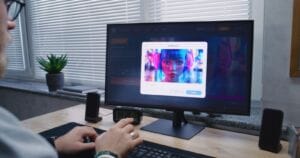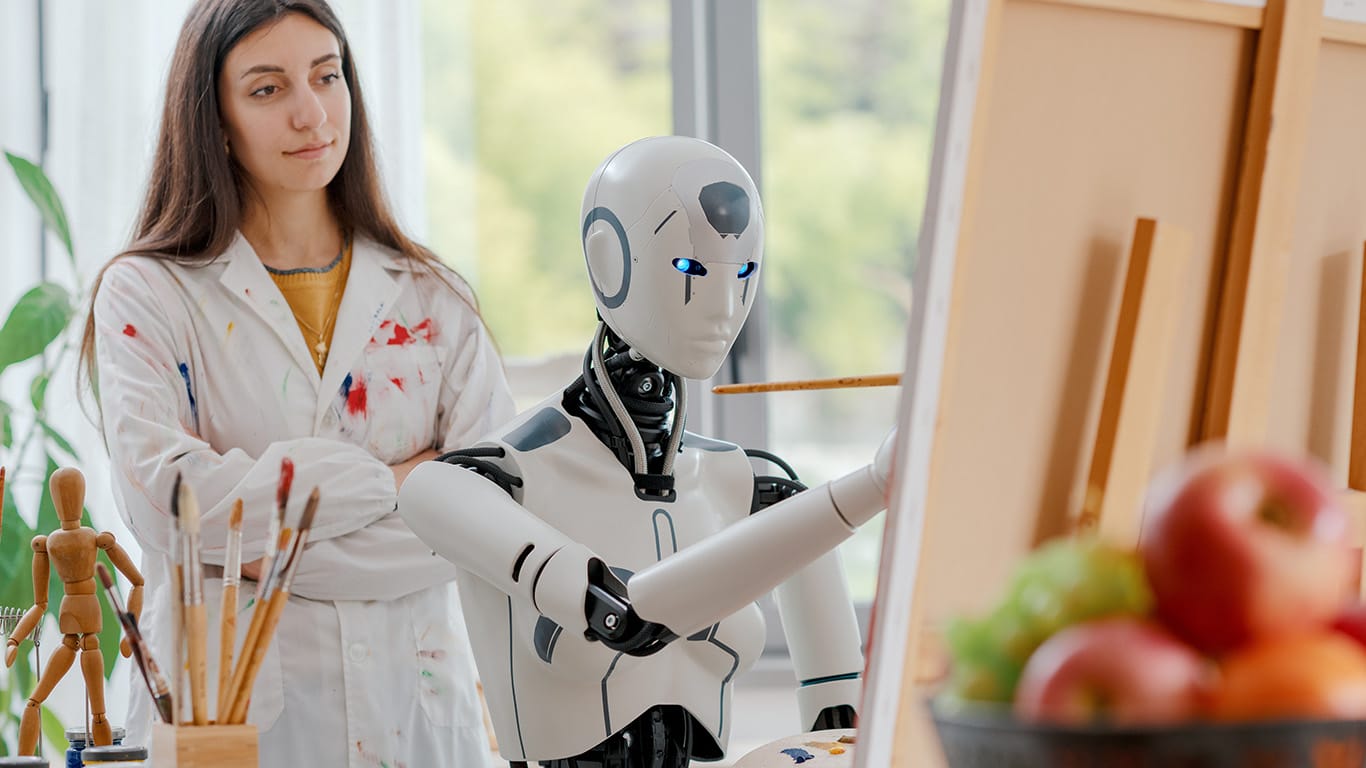
Ever had a brilliant visual idea but lacked the artistic skill or expensive software to make it real? You’re not alone. Many people want to create custom images for social media, presentations, or personal projects but find the process difficult. The good news is that you no longer need to be a professional designer to produce stunning visuals.
You can now bring your imagination to life using a Free AI Image Generator Online. These powerful tools use artificial intelligence to turn simple text descriptions into unique, high-quality images in seconds. This guide will walk you through the entire process, showing you how to create incredible artwork from just a few words.
FOOD NEWS: 25 places for great patio dining in Arizona
THINGS TO DO: Want more news like this? Get our free newsletter here
A Step-by-Step Guide to AI Image Creation
Creating images with AI is a straightforward process. By following these steps, you can turn a simple idea into a finished piece of art ready for you to use.
Step 1: Write a Clear Text Prompt
Your journey starts with a text prompt. This is a description of the image you want the AI to create. The more detailed your prompt, the better the AI can understand your vision. Think about the subject, the setting, the colors, and the overall mood you want to convey.
Instead of writing “a cat,” try something more descriptive like “a fluffy ginger cat sleeping on a stack of books in a sunlit library.” This level of detail gives the AI clear instructions to work with, resulting in a more accurate and compelling image.
Step 2: Choose Your Desired Style
Next, think about the artistic style. Do you want a realistic photograph, a vibrant anime character, or a soft watercolor painting? Specifying the style is one of the most important parts of the process. You can add style keywords directly into your prompt.
For example, you could write “a futuristic city skyline, cyberpunk style” or “a portrait of a woman, impressionist oil painting.” Popular styles include photorealistic, digital art, 3D render, cartoon, and abstract. Experimenting with different styles is a great way to discover new creative possibilities. You can also use a free image to image generator to apply a new style to an existing picture.
Step 3: Add Details and Modifiers
Once you have your subject and style, it’s time to add modifiers. These are extra keywords that refine the image quality, lighting, and composition. Words like “highly detailed,” “cinematic lighting,” or “4K” can significantly improve the final result.
Consider the camera angle as well. Do you want a “wide-angle shot” to capture a sweeping landscape or a “close-up portrait” to focus on a character’s expression? Adding these details gives you greater control over the final composition and helps the AI produce a more professional-looking image.
Step 4: Generate and Review the Image
With your prompt ready, click the “Generate” button. The AI will process your request and create a unique image based on your instructions. This usually takes less than a minute. Once the image appears, take a moment to review it.
Does it match your vision? Are there any elements you want to change? Don’t worry if the first result isn’t perfect. The creative process often involves a bit of trial and error. You can easily adjust your prompt and generate new versions until you get exactly what you want.
Step 5: Refine Your Prompt or Image
If the generated image is close but not quite right, it’s time to refine it. Look at your prompt and see if you can make it more specific. Maybe you need to change a color, adjust the lighting, or add a missing detail. Small changes to your text can lead to big improvements in the output.
For example, if you prompted “a knight in armor” and got a generic result, you could refine it to “a knight in ornate silver armor with gold trim, standing in a dark forest.” This iteration process is key to mastering AI image generation and achieving your desired outcome.
Step 6: Download Your Final Creation
Once you are happy with the image, the final step is to download it. Most AI image generators provide a simple download button that saves the file directly to your device. You can then use your new creation for your blog, social media posts, marketing materials, or any other project you have in mind.
Tips for Writing Better AI Prompts
The quality of your image depends heavily on the quality of your prompt. Here are some best practices to help you write effective prompts that deliver amazing results.
Be Ultra-Specific
Vague prompts lead to generic images. The more specific details you provide, the more unique your image will be. Instead of just naming a subject, describe it. Think about its texture, color, shape, and what it’s doing.
| Vague Prompt | Detailed Prompt |
| A dog | A happy golden retriever puppy with a red ball, running through a green field on a sunny day |
| A car | A vintage red convertible sports car driving along a coastal highway at sunset, cinematic lighting |
| A house | A cozy, rustic cabin in the woods during autumn, with smoke coming from the chimney, watercolor style |
Use Negative Prompts
Sometimes, telling the AI what *not* to include is just as important as telling it what to include. Negative prompts help you remove unwanted elements from your image. Most generators have a separate field for negative prompts or allow you to use a command like `–no`.
Common uses for negative prompts include removing text, extra limbs, or blurry backgrounds. For example, if you are creating a portrait, you might use a negative prompt like “ugly, deformed, disfigured, extra fingers” to ensure a cleaner result.
Experiment with Different Art Mediums
Don’t limit yourself to just “digital art” or “photograph.” The AI understands a vast range of art mediums and styles. Try prompting for things like “charcoal sketch,” “linocut print,” “gouache painting,” or “3D octane render.” This can add a unique texture and feel to your creations.
Define the Composition
Guide the AI by describing the camera work. Keywords related to photography and cinematography can have a powerful impact on the final image.
* Shot Type: “Close-up,” “medium shot,” “full-body shot,” “extreme wide shot.”
* Angle: “Low angle,” “high angle,” “bird’s-eye view,” “dutch angle.”
* Lighting: “Cinematic lighting,” “soft light,” “dramatic lighting,” “rim lighting.”
Common Mistakes to Avoid
As you get started, you might run into a few common hurdles. Here are some mistakes to watch out for and how to fix them.
Making Contradictory Requests
AI can get confused if your prompt contains conflicting information. For example, asking for “a bright, sunny day during a dark, stormy night” will likely produce a strange or failed result. Make sure your descriptions are logical and consistent. If you want a specific mood, ensure all elements of your prompt work together to create it.
Expecting Perfect Text and Hands
While AI image generators are incredibly advanced, they still struggle with certain details. Generating clear, legible text and anatomically perfect hands are two of the most well-known challenges. If you need text in your image, it’s often better to add it later using a simple photo editor. For hands, try to hide them or make them less prominent in the composition if they don’t look right.
Forgetting to Iterate
Many beginners generate one image, feel disappointed, and give up. The best creations are almost always the result of iteration. Your first prompt is a starting point, not a final command. Tweak your words, add new details, change the style, and generate again. Treat it as a conversation with the AI until you achieve the image in your head.
Sticking to Simple Prompts
While simple prompts are a good place to start, they won’t unlock the AI’s full potential. Don’t be afraid to write long, descriptive prompts. Combine multiple ideas, describe complex scenes, and push the boundaries of what’s possible. The more you experiment with complex prompts, the more you’ll understand how the AI thinks and how to get the most out of it.
Conclusion
Creating custom images is no longer a barrier to your creativity. A free AI image generator is a powerful tool that allows anyone to become a digital artist. By learning how to write effective prompts and following a simple workflow, you can translate any idea into a beautiful, high-quality image.
The key is to be specific, experiment with different styles, and refine your ideas. Now that you know the steps, it’s time to start creating. Go ahead and turn your imagination into art.