
Seeing the message “This iPhone Is Managed Remotely” during setup can be frustrating, especially if you purchased a second-hand iPhone or iPad. This notification indicates that the device is likely registered with an organization’s Mobile Device Management (MDM) platform, which is commonly used by businesses, educational institutions, and other organizations to manage their devices.
Getting MDM restrictions removed can be challenging if you cannot contact the organization responsible for managing the device. For a reliable resolution, ask the organization responsible for the device to unenroll it from its MDM management system. Alternatively, users who legally own the device or have proper authorization may consider using third-party software to remove the management profile.
In this guide, we’ll look at three iPhone/iPad MDM removal tools: MagFone iPhone Unlocker, iMyFone LockWiper iPhone passcode unlocker, and iActivate. We’ll compare their features, advantages, and limitations to help you find a suitable solution.
How to Remove “This iPhone Is Managed Remotely”
Before trying an MDM removal tool, consider these options:
- Reach out to the organization: For devices that once belonged to a business or educational institution, contact the IT department and request that they unenroll the device from their MDM platform and remove its registration from Apple Business Manager or Apple School Manager.
- Contact the previous owner: If you purchased a used iPhone or iPad, ask the seller to arrange the proper removal of the device from the organization’s management system.
- Check the MDM profile in Settings: If you can access the Home Screen, open Settings, go to General, and select VPN & Device Management. If the management profile allows removal, you can try deleting it manually from your device. Some profiles, however, can only be removed by an administrator.
If these options aren’t available and you are authorized to manage the device, you can also consider a third-party MDM removal tool.
#1. MagFone iPhone Unlocker
For those seeking a way to remove MDM restrictions from an iPhone or iPad, MagFone iPhone Unlocker is a good option to explore. This computer-based iOS unlocking program includes a specific function for bypassing MDM restrictions on supported devices, without requiring users to provide the original management account credentials.
Another notable feature is its data-preserving approach to MDM removal on compatible devices. This means you may be able to get rid of management restrictions while keeping personal content, including photos, contacts, documents, and other stored file.
Besides MDM removal, MagFone also includes features for unlocking iPhone screen passcodes, removing Apple ID, and turning off Screen Time restrictions in supported situations.
Why it stands out
- Removes supported MDM restrictions without an MDM username or password.
- Designed to preserve existing data during supported MDM removal.
- Supports a wide range of iPhone and iPad models including iPhone 18 and iOS 27.
- Includes additional remove activation lock without previous owner features.
- Beginner-friendly interface with guided instructions.
Limitations
- Only remove MDM from iPad and iPhone
How to Remove MDM Restriction from iPad/iPhone Using MagFone
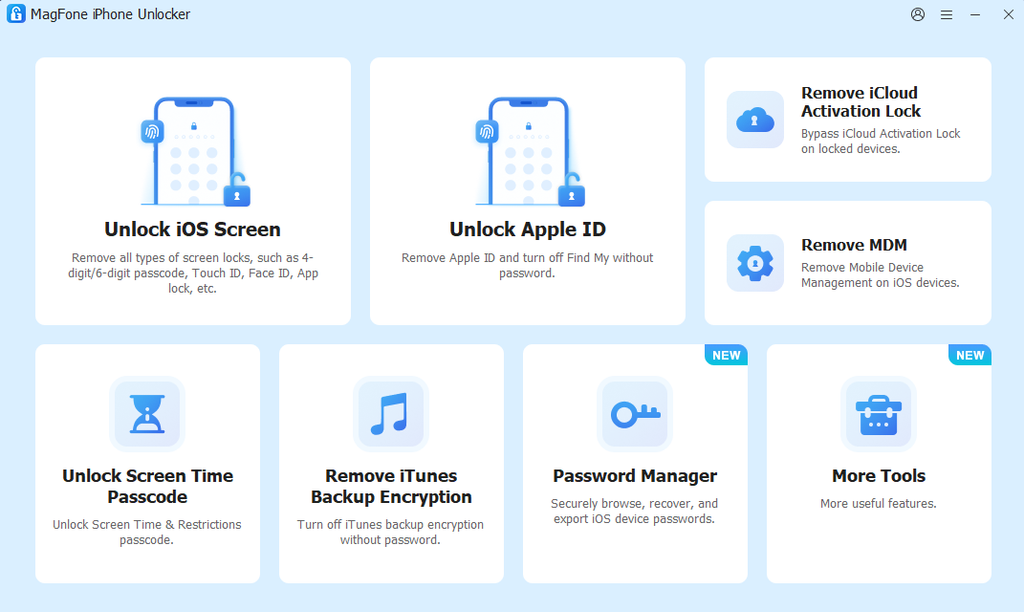
Step 1: Install MagFone iPhone Unlocker on your Windows or Mac computer. Use a USB cable to connect your iPhone or iPad, launch the software, and choose the Remove MDM option from the home screen.
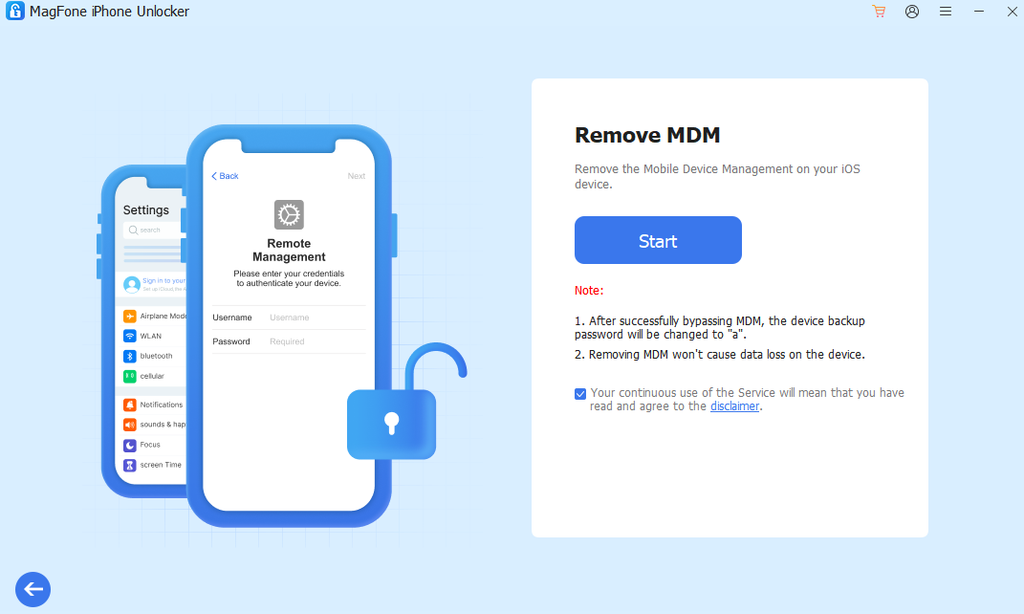
Step 2: Proceed according to the instructions displayed in the software. You may be asked to disable Find My before continuing with the removal operation.
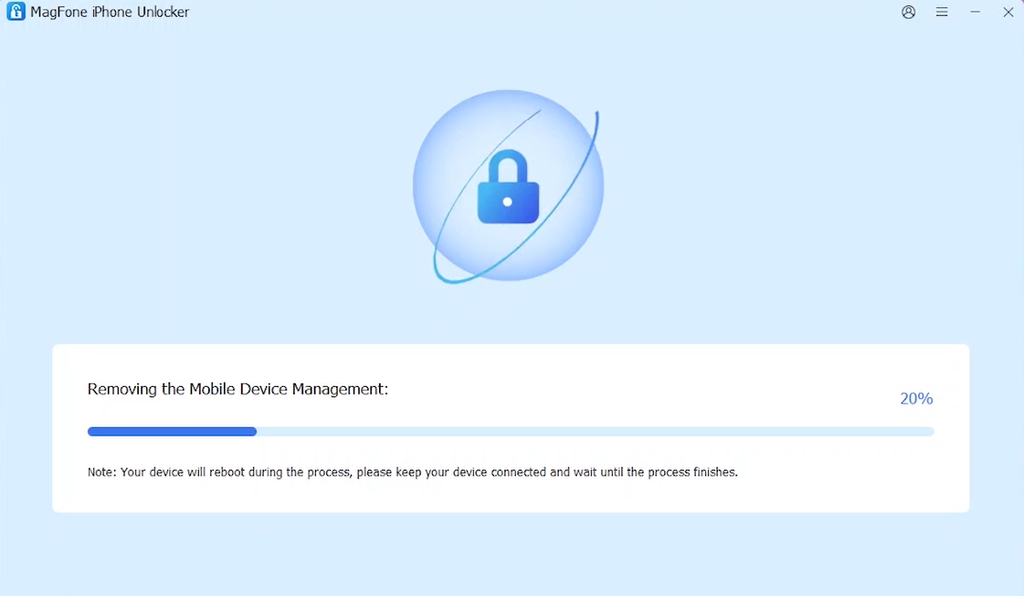
Step 3: Allow MagFone to complete the procedure. Once finished, verify whether the MDM restrictions have been successfully cleared from your compatible device.
#2. iMyFone LockWiper
iMyFone LockWiper is an iPhone unlocking program that includes a dedicated Bypass MDM feature. It offers options for dealing with MDM restrictions and the Remote Management screen during device setup, depending on the device and system version.
Pros
- Dedicated MDM bypass feature.
- Offers options for different MDM-related situations.
- Supports iPhone and iPad.
- Includes other iOS unlocking functions.
Cons
- Compatibility depends on the device and iOS/iPadOS version.
- Some operations have specific requirements, such as disabling Find My.
- MDM enrollment may return after a factory reset.
#3. iActivate
iActivate specializes in providing MDM bypass solutions for iPhones and other Apple devices. It advertises services for bypassing the Remote Management screen on supported iPhones and iPads. Unlike general-purpose unlocking tools, its main focus is MDM-related restrictions.
Another feature that makes iActivate different is its separate Mac MDM bypass service. It advertises support for various Mac models, including MacBook Air, MacBook Pro, Mac mini, and iMac, with Apple Silicon and Intel T2 chips. Its official website also lists compatibility with macOS versions up to Tahoe 26.
Pros
- Focuses on MDM bypass for Apple devices.
- Bypassing Remote Management restrictions on iPhones and iPads.
- Provides a separate Mac MDM bypass service.
- Includes device compatibility information on its website.
Cons
- Not every device or system version is supported.
- Requires checking compatibility before purchasing.
- MDM may return after a factory reset.
- Its stated terms restrict use to educational, personal, non-commercial, and non-profit purposes.
Final Verdict
Choosing the right MDM removal tool depends on your device’s current state and the type of restriction you’re facing. MagFone iPhone Unlocker is worth considering if you can access Settings and want to remove supported MDM profile restrictions while preserving existing data. iMyFone LockWiper offers dedicated MDM bypass options for different situations, while iActivate stands out with its additional Mac MDM bypass service.
Before purchasing any tool, check its current compatibility requirements and limitations. If your iPhone or iPad is still assigned to a company or school, contacting the organization and asking it to release the device remains the most reliable way to remove the enrollment permanently. Bypassing an on-device restriction does not necessarily remove the device from an organization’s Apple Business Manager or Apple School Manager records.