
Introduction
An iPhone stuck in Recovery Mode may display the recovery screen repeatedly instead of booting up normally.
Recovery Mode is a useful tool for fixing problems with your iOS, but at times, due to a failed update, internal error, or any other reason, the iPhone gets stuck in iOS Recovery Mode. If your iPhone enters Recovery Mode after every restart, it might be caught in a loop.
This article will help you exit Recovery Mode by using the repair options on your iPhone so that you can make it work again. Let’s find out how it works!
Why Does an iPhone Get Stuck in Recovery Mode?
At times, an iPhone might get into Recovery Mode if there is an attempt either to start or finish an update. There can be various reasons behind this situation, from a wrong update file to a faulty piece of hardware.
| Cause | What It Means |
| Failed iOS update | The update did not finish properly, so the iPhone cannot start normally. |
| Interrupted restore | A restore was stopped or failed before it could finish. |
| Corrupted system files | Damaged iOS files can prevent the iPhone from booting correctly. |
| Connection problems | A poor USB connection or computer issue can interrupt an update or restore. |
| Software crashes | A serious iOS error can cause the iPhone to restart into Recovery Mode. |
| Hardware problems | Damage to internal parts can sometimes cause startup or system problems. |
Try a Force Restart First
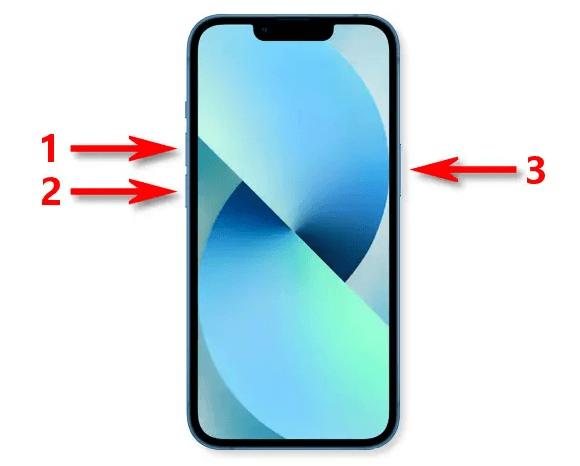
A force restart is a quick way to reset your iPhone if it is stuck in iOS Recovery Mode. A force restart does not erase data but may get your phone working normally again.
Step 1. For iPhone 8 or later, quickly press and release Volume Up, then Volume Down. Press and hold the Side button until the Apple logo appears.
Step 2. For iPhone 7 or 7 Plus, press and hold the Side and Volume Down buttons together until the Apple logo appears. For iPhone 6s or earlier, hold the Home and Side/Top buttons together until you see the Apple logo.
Step 3. Allow the iPhone to boot up. If it boots up normally, there’s nothing more to do. If the Recovery Mode screen appears again, hook the iPhone up to your computer and continue to the next method.
Connect Your iPhone to a Mac or PC
If a force restart fails to exit Recovery Mode; you can check the iPhone using a computer and reinstall iOS if needed. Don’t forget that you need to keep your iPhone connected throughout this process.
Step 1. Connect the USB cable to your iPhone and a Mac or Windows computer.
Step 2. On a newer Mac, you can use Finder, use the Apple Devices app or iTunes.
Step 3. Choose your iPhone when it is displayed. Your computer will display a message that the iPhone must be updated or restored.
Choose Update Before Restore
When your computer offers you Update and Restore, choose Update to preserve your data. Apple suggests updating your iPhone before restoring it if your iPhone is unable to start up or update normally.
Step 1. Select Update. This reinstalls iOS without intentionally erasing your personal data.
Step 2. Let the computer download and install the software. Keep the iPhone connected until the process finishes.
Step 3. If Update fails and the iPhone remains in Recovery Mode, Restore is the next option. Restore reinstalls iOS but erases the iPhone.

What If the iPhone Keeps Returning to Recovery Mode?
If, you see the Recovery Mode screen again after an update or a reboot, first check the connection. If this doesn’t fix the problem, you can try an iOS system repair software tool to resolve any software issues.
Check the Cable and USB Connection
A broken cable or a bad USB connection may stop the update/restore process. The easiest thing you can do is try a direct connection. Only if that doesn’t work, then proceed with further options.
- Inspect the USB cable for physical damage and replace it with a genuine cable.
- Remove the USB hub if installed and connect your iPhone directly to your computer.
- Try another USB port or even a different machine if the iPhone is not detected.
Make Sure Computer Software Updated
An outdated computer app can cause problems when it communicates with your iPhone. Update the software before trying to update or restore it.
- Update macOS on a Mac.
- On Windows, update the Apple Devices app or iTunes if you use an older supported setup.
- Restart the computer and reconnect the iPhone.
Try iOS System Repair Software
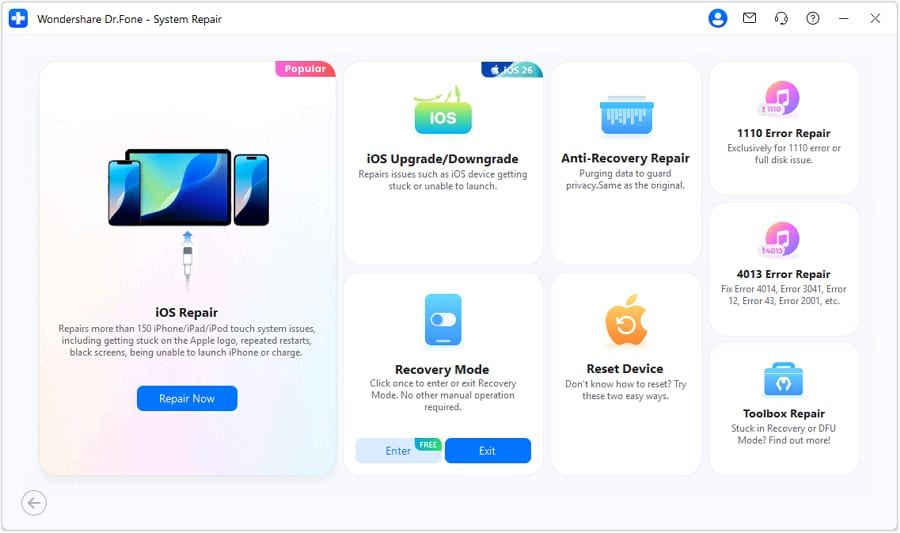
In case your iPhone just doesn’t stop entering or exiting Recovery Mode even after you’ve gone through every possible fix then the last resort could be using recovery mode repair apps. Dr.Fone – System Repair (iOS) is an app for fixing software problems related to iPhone & iPad.
With Dr.Fone iOS system repair software, you can:
- Exit Recovery Mode: It allows for a safe and easy way of recovering your iPhone that is stuck in recovery screen.
- Fix 150+ iOS problems: It will fix issues that include freezing at the Apple logo, reboot loops, black or white screens, frozen screens, update failures, and system crashes.
- Run Standard Repair: This repair method is used to fix the main iOS problems without the risk of data loss.
- Advanced Repair: If the device is not working properly despite the Standard Repair, then you may do a full system restore using Advanced Repair.
- Solve iTunes Problems: It offers 200+ fixes for errors when iTunes is not working properly and covers 4013, 4014, 1110, 3041, 12, 43, and 2001, which are among the most common issues that you can resolve with this tool.
Should You Restore the iPhone?
Use Restore only if force restart and Update aren’t working. This can reinstall iOS when your system isn’t working, but it deletes all your data and settings. Before restoring, ensure you have a current backup in iCloud or on your computer.
When to Contact Apple or a Repair Professional
If software solutions don’t get you out of the problem, perhaps it’s an issue that cannot be fixed at home. Getting professional repair is a good option when you can detect physical signs of damage.
- Physical damage: A drop, a cracked device, liquid exposure, etc., recently could have caused startup problems.
- Buttons broken: If the Volume, Side, or Home buttons aren’t working, you might find it hard to get out of/into Recovery Mode.
- Recovery keeps failing: The iPhone may still be in Recovery Mode even after updating, repairing, or restoring your device, so if this keeps happening more than once, the situation probably requires further checks.
- Computers cannot detect it: If different cables, USB ports, and computers do not recognize the iPhone, there may be a hardware or connection issue.
Conclusion
The iPhone being in recovery mode doesn’t necessarily mean there is a problem. You could just start with a force restart, and if that doesn’t work, go for Update via ‘Finder’ or ‘Apple Devices’ before trying ‘Restore’. If the issue remains, try other cables, check the connections on the computer, or run iOS system repair software like Dr.Fone – System Repair (iOS).
If none of these steps work, especially after physical damage or repeated failures, it may be time to contact Apple or a qualified repair professional.