
Installing a messaging application may seem like a routine task. An employee searches for the software name, clicks a result, downloads an installer, and begins using it.
For small businesses, that casual process can create unnecessary risk.
Search results for popular software frequently include official websites, software directories, independent tutorials, advertisements, mirrors, localized guides, and domains that contain a recognizable brand name without being operated by that brand.
A page can look professional and still be the wrong place to obtain software.
For businesses that do not have a dedicated IT security team, the safest approach is to create a simple verification process before any new messaging client is installed.
Verify the source before running the file.
Why Download Verification Matters for Small Businesses
Large companies often control software deployment centrally.
Small and medium-sized businesses are more likely to let employees install applications themselves.
This is convenient, but it increases exposure to several risks:
- malicious installers;
- unwanted browser extensions;
- credential theft;
- modified applications;
- outdated software;
- fake update tools;
- bundled programs;
- phishing pages.
A single employee installing software from an unverified source can affect more than one person.
The device may contain:
- customer records;
- invoices;
- internal documents;
- saved passwords;
- active messaging sessions;
- shared-drive access;
- company email.
For that reason, software downloading should be treated as part of cybersecurity rather than as a purely technical convenience.
LEARN MORE: Arizona earns 19 Michelin Guide selections in inaugural Southwest Guide
Start With the Domain Name
The first thing employees should verify is the actual website address.
Search-result titles are not reliable evidence of ownership.
A page may display phrases such as:
- “official download”;
- “latest version”;
- “Windows official client”;
- “enterprise edition”;
- “Chinese version.”
Those phrases can be written by anyone who operates a website.
The domain is more useful.
When evaluating a download page, look for:
- spelling changes;
- additional words;
- unusual hyphens;
- unexpected domain extensions;
- misleading subdomains;
- unnecessary redirects.
A recognizable brand name appearing somewhere inside a domain does not prove that the company behind the software owns that domain.
Employees should be trained to read the address bar instead of relying on visual branding.
Understand the Difference Between a Publisher and a Guide
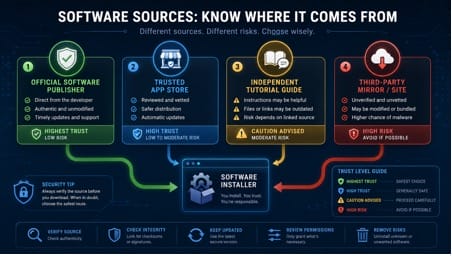
One of the most important distinctions in software verification is the difference between an official publisher and an independent information source.
Both may appear in the same search results.
Official publisher
This is the organization responsible for developing or distributing the software through its own approved infrastructure.
App store
A platform such as an operating-system or mobile app store may distribute software on behalf of publishers.
Independent guide
A tutorial website may explain installation, language settings, account setup, or troubleshooting.
Software directory
A third-party directory may catalogue software from many publishers.
Mirror
A mirror may host a copy of an installation file.
These categories are not automatically good or bad.
The important question is whether the user understands what kind of site they are visiting.
Independent guides can be useful for instructions, especially when users need information in another language. But they should not automatically be treated as the original software publisher.
Chinese-speaking users comparing Telegram-related domains and access terminology may, for example, consult a Telegram 官方网站访问指南 as supplementary reading while the actual publisher and download destination are verified separately.
That distinction should remain clear throughout the installation process.
Check Where the Download Button Actually Leads
The page containing the download button may not be the location providing the installer.
A user may begin on one website, click a button, pass through a redirect, and finally receive a file from a completely different domain.
That does not automatically mean the download is unsafe, but it creates an additional verification step.
Employees should watch for:
- multiple unrelated redirects;
- unexpected file-sharing services;
- advertising pages;
- shortened links;
- download managers that appear before the actual application;
- executable files with unusual names.
If the destination differs significantly from what the employee expected, the safest action is to stop and verify.
Check the Software Publisher
Windows and other operating systems may provide information about the publisher of an installer.
Employees should compare this information with what they expect.
An unknown publisher does not automatically prove that a file is malicious. Smaller developers may use different signing arrangements.
However, an unexpected publisher should be treated as a reason to investigate.
For example, if an employee believes they are installing a widely known messaging client but the installer identifies an unrelated company, that discrepancy needs an explanation.
The business should never train employees to ignore these warnings automatically.
Digital Signatures Add Useful Context
Digital signatures can help users verify that software was signed by a particular publisher and has not been altered after signing.
They are one part of a larger verification process.
A good workflow may include checking:
- file properties;
- publisher information;
- signature status;
- operating-system warnings;
- antivirus results;
- original download source.
No single indicator should be treated as perfect proof.
Security is stronger when several pieces of information are consistent.
HTTPS Does Not Mean a Website Is Official
HTTPS is important, but it is often misunderstood.
The padlock icon and HTTPS indicate that the connection between the browser and website is encrypted, helping protect traffic while it moves across the network.
HTTPS does not prove that the website belongs to the software company an employee intended to visit; a fraudulent site can also use HTTPS.
HTTPS answers the question “Is the connection encrypted?”
It does not necessarily answer “Is this the real publisher?”
Employees should verify both the connection and the domain.
Be Careful With High-Risk Download Claims
“Cracked version”
Businesses should not rely on modified software that bypasses normal licensing, security, or authentication controls.
“No verification required”
Claims that a messaging application can bypass expected login or account-verification procedures deserve careful investigation.
“Special enterprise edition”
If the software vendor does not document such an edition, verify the claim before downloading.
“Chinese-only modified version”
Language support and software provenance are separate questions. A localized interface is not a reason to trust an unknown installer.
“Disable antivirus before installation”
Security software can occasionally produce false positives, but a generic instruction telling every user to disable protection is a serious warning sign.
“Install our downloader first”
A messaging application should not normally require an unrelated third-party download manager simply to obtain the installer.
These signals do not replace technical analysis, but they are useful indicators for non-technical employees.
Create an Approved Software List
Businesses can eliminate much of this uncertainty by maintaining a basic approved-software register.
The list does not need to be complicated.
A small spreadsheet can include:
| Field | Example |
| Software | Messaging client |
| Approved domain | Verified publisher domain |
| Supported platform | Windows |
| Internal owner | Operations / IT |
| Update method | Built-in updater |
| Last reviewed | Date |
The same approach can be used for:
- browsers;
- VPN clients;
- PDF tools;
- video-conferencing apps;
- cloud-storage clients;
- password managers;
- collaboration software.
Once a download source has been reviewed, employees no longer need to repeat the same search every time a device is replaced.
Define an Installation Approval Process
Low-risk installation
The application is already approved, the domain is known, and the version is expected. Employees may be allowed to install it without additional review.
Medium-risk installation
The software is approved but the download source, device, or version has changed. A manager or technical administrator may need to verify it.
High-risk installation
The software is unknown, modified, unsigned, or downloaded from an unfamiliar source. Installation should stop until someone with appropriate technical responsibility reviews it.
Even a company with no dedicated IT department can assign one person to own this process.
Keep Download and Account Security Separate
Installing legitimate software does not automatically protect an account.
A messaging account may still be compromised if an employee:
- gives away a verification code;
- reuses a weak password;
- approves an unknown login;
- leaves a session active on a shared computer;
- falls for a phishing message.
Similarly, strong account settings do not make an untrusted installer safe.
Businesses should therefore think about two separate questions:
Software security: Did we install the intended application from a trustworthy source?
Account security: Who currently has access to the messaging account?
Both need controls.
Train Employees to Recognize Login-Code Scams
Messaging platforms frequently use verification codes during sign-in.
Employees should understand that these codes are sensitive authentication information.
An unrelated download page, support agent, group administrator, or stranger should not need the code simply to provide software.
If a website asks employees to submit private login codes before downloading an installer, they should stop immediately.
This simple rule can prevent many account-takeover attempts.
Support Chinese-Speaking Employees Without Confusing Source Ownership
Businesses in Hong Kong, Taiwan, and other multilingual environments may use English-language software while employees search for instructions in Chinese.
Independent Chinese tutorials can be valuable for:
- explaining terminology;
- comparing platforms;
- understanding installation steps;
- troubleshooting;
- finding settings.
For example, a Telegram 官方下载渠道指南 can help Chinese-speaking users understand download-route terminology and the checks to perform before installation.
However, businesses should still maintain their own list of verified publisher domains and approved download channels.
A useful guide and an official publisher are not the same thing.
Making that distinction explicit allows employees to benefit from localized information without weakening download controls.
What If an Employee Already Installed Software From a Suspicious Source?
If an unverified application has already been installed, the company should respond systematically.
A practical first-response sequence is:
- Stop using the suspicious application.
- Identify where the installer came from.
- Record the filename and source domain.
- Run appropriate endpoint security scans.
- Remove suspicious or unwanted software.
- Check whether additional programs were installed.
- Review browser extensions.
- Change credentials if they may have been exposed.
- Review active account sessions.
- Reinstall the application from an approved source if necessary.
If customer or company data may have been affected, the incident should be escalated according to the organization’s security or privacy procedures.
Deleting the installer alone may not be enough if credentials or sessions have already been compromised.
Build a 60-Second Pre-Installation Checklist
A short checklist can prevent many problems without slowing employees down.
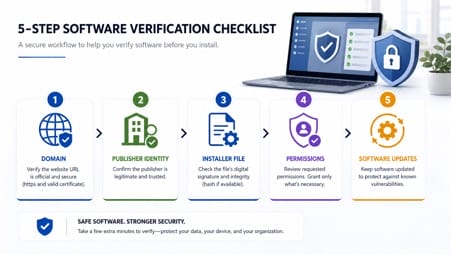
Before clicking Install, ask:
- Is the domain correct?
- Does the site belong to the expected publisher?
- Where does the download button lead?
- Is the installer appropriate for this operating system?
- Does the publisher information look correct?
- Is the digital signature expected?
- Are there unusual redirects?
- Does the site ask me to disable security software?
- Does it request credentials or verification codes?
- Do I know how the application will receive updates?
- Is the software approved by the company?
If several answers are unclear, installation should stop.
The purpose is not to create fear around software downloads. It is to remove uncertainty before an executable is allowed to run on a business device.
Review Approved Sources Periodically
An approved-software list should not remain unchanged forever.
Software companies may:
- update distribution methods;
- change domains;
- discontinue products;
- move applications into app stores;
- introduce new update systems.
Businesses should review critical applications periodically.
A review every six or twelve months may be enough for many small organizations.
High-risk or frequently updated tools may require more attention.
Make Verification Part of Everyday Security
Small-business cybersecurity is often discussed in terms of advanced threats, but many incidents begin with ordinary employee actions.
Downloading software is one of them.
A clear verification process turns a casual decision into a controlled one.
Employees do not need to become security analysts.
They only need to know when the information in front of them matches the company’s expectations—and when it does not.
A Practical Rule for Safer Software Installation
The safest software download is not necessarily the first result on a search page or the website with the most professional design.
It is the download whose source, publisher, file, permissions, and update path the organization can verify.
Domain → Publisher → File → Permissions → Updates
For small businesses, that simple sequence can significantly reduce the risk created by fake download pages, modified installers, and confusing search results.
Independent guides and localized tutorials can still be useful, especially for employees working in Chinese and English. The important thing is to understand their role.
Use independent guides for information and verified publisher channels for software.
That distinction is simple, scalable, and worth making part of every company’s software-installation process.