
Small businesses rarely struggle because they lack communication tools. The real problem is that every employee tends to use those tools differently.
One person replies to customers from an iPhone while commuting. Another keeps a messaging client open all day on a Windows desktop. A third employee works remotely from a laptop, while contractors rely almost entirely on mobile devices. Over time, messages, downloaded files, notifications, and active sessions become scattered across multiple devices.
For small businesses in Hong Kong and Taiwan, where teams often work across offices, home environments, client locations, and mobile networks, a reliable communication workflow needs more than an app. It requires a repeatable process for desktop setup, mobile access, notifications, file handling, security, onboarding, and offboarding.
The goal should not be to force everyone onto one device. It should be to make every device part of the same controlled workflow.
Why Cross-Device Messaging Needs a Business Process
A personal messaging setup can be informal. If one person misses a notification or saves a document in the wrong folder, the impact is limited.
In a business environment, the same mistake can affect customers, project timelines, privacy, and internal accountability.
Common problems include:
- employees installing different versions of the same messaging client;
- work conversations being handled only on personal phones;
- important documents remaining inside chat threads;
- desktop notifications exposing private messages;
- old laptops staying logged into business accounts;
- former employees retaining access longer than expected;
- media files consuming unnecessary storage;
- staff using different privacy and security settings.
These issues become more serious as a company grows.
Even a team of 10 people can create dozens of active device sessions when every employee uses a phone, desktop computer, and occasional browser login.
A better approach is to standardize the workflow early.
LEARN MORE: Arizona earns 19 Michelin Guide selections in inaugural Southwest Guide
Choose a Primary Device and a Secondary Device
A useful way to reduce confusion is to define one device as the primary work environment and another as the secondary access point.
For many office-based small businesses, the primary device is a Windows computer.
Windows desktops and laptops are generally better suited to:
- long customer conversations;
- managing documents;
- copying information between applications;
- reviewing spreadsheets or PDFs;
- working with multiple windows;
- handling large volumes of messages.
The secondary device is usually a smartphone.
Mobile access is useful for:
- urgent replies;
- commuting;
- travel;
- customer contact outside the office;
- quick notifications;
- photos and media captured on the move.
Mobile access should support the desktop workflow rather than create a separate one.
If employees treat their phones and computers as two unrelated communication environments, files and notifications quickly become fragmented.
Standardize the Windows Setup First
For teams that rely heavily on desktop work, the Windows installation process should be documented.
Employees should not independently search for whatever download page appears first in Google.
Instead, the company should define:
- which application is approved;
- which download route should be used;
- which desktop version is expected;
- how installation should be completed;
- how employees should sign in;
- how updates should be handled.
This becomes especially important when staff search in Chinese.
Terms such as Telegram 電腦版, 電報電腦版, Telegram Windows, and Telegram 中文版 can lead to a mixture of official pages, tutorials, download directories, and independent guides.
Chinese-speaking teams that need additional Windows-specific setup context can consult a resource such as 电报 Windows 电脑版 before standardizing their desktop workflow.
The important point is not to rely on a single tutorial blindly. Businesses should still verify the software source and maintain their own approved installation process.
Keep Mobile Access Complementary
Once the desktop environment is standardized, mobile access can be configured around actual business needs.
For example, an employee in Hong Kong may handle a long customer conversation on a Windows workstation during office hours, then continue monitoring urgent messages from a phone while travelling home.
A Taiwan-based sales representative may spend most of the day away from a desk and rely more heavily on mobile access, while still using a desktop computer for documents and longer discussions.
Both workflows can work well as long as the organization defines what belongs where.
A useful rule is:
- use mobile for time-sensitive communication;
- use desktop for extended work;
- move important files into the proper company storage system;
- avoid creating a second unofficial workflow on personal devices.
This keeps the messaging platform useful without turning it into an uncontrolled information repository.
Create Consistent Notification Rules
Notifications are one of the most common sources of communication fatigue.
When every group, channel, direct message, and automated alert is allowed to interrupt employees, important messages become harder to distinguish from background noise.
Small businesses should define a simple priority model.
High priority
Direct messages from customers, managers, or critical project contacts may need immediate attention.
Medium priority
Internal work groups can remain active during business hours but may not need to interrupt employees outside those hours.
Low priority
Large communities, announcement channels, or optional discussion groups can often be muted or checked manually.
This type of structure reduces notification overload and lowers the risk that truly important messages are ignored.
It also helps employees maintain healthier boundaries between work and personal communication.
Protect Notification Privacy
Desktop notifications introduce another issue: visibility.
A message preview may contain:
- customer names;
- payment details;
- internal project information;
- personal conversations;
- confidential files;
- one-time login information.
If an employee gives a presentation, shares a screen, or works in an open office, those previews may be visible to people who should not see them.
Businesses should therefore review:
- lock-screen notifications;
- message previews;
- sound alerts;
- pop-up banners;
- notification behavior during screen sharing.
The correct setting depends on the workplace, but it should be a conscious choice rather than a default left unchanged.
Standardize File Handling Across Devices
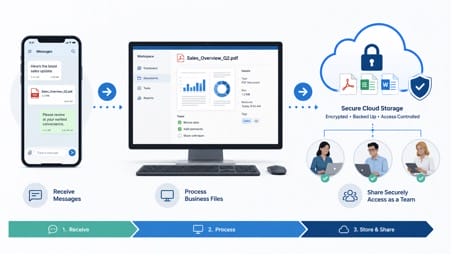
Messaging apps are useful for transferring files, but they should not become the company’s permanent storage system.
A typical small-business workflow may involve:
- PDF invoices;
- spreadsheets;
- images;
- contracts;
- presentations;
- customer screenshots;
- product files.
If every employee downloads these files to different folders across phones and computers, the organization loses control over versioning.
Messaging app → temporary transfer
Company storage → permanent record
Important business files should be moved to the company’s approved shared drive, cloud platform, project-management system, or document repository.
This ensures that the final version is available even if a chat is deleted, an employee leaves, or a device is replaced.
Manage Automatic Downloads and Local Storage
Automatic media downloads can be convenient on a personal phone, but the same behavior may not make sense on a business workstation.
Large groups can generate substantial amounts of:
- video;
- images;
- voice messages;
- compressed archives;
- documents.
If these files are downloaded automatically, a company laptop can accumulate gigabytes of unnecessary data.
Businesses should decide whether employees need:
- automatic photo downloads;
- automatic video downloads;
- automatic document downloads;
- separate rules for Wi-Fi and mobile data;
- scheduled cleanup of old media.
Employees should also know exactly where desktop files are saved.
A forgotten Downloads folder is not a document-management strategy.
Review Active Devices and Sessions
Cross-device convenience creates another security responsibility.
Every connected phone, laptop, desktop, or browser session is another endpoint that may provide access to business conversations.
Employees should periodically review active devices and remove sessions associated with:
- replaced phones;
- old laptops;
- temporary computers;
- browser sessions no longer in use;
- devices they do not recognize.
This is especially important after:
- changing jobs;
- travelling;
- losing a device;
- replacing hardware;
- using a shared computer.
Small businesses do not need enterprise-level device management to adopt this habit. A simple quarterly review can already reduce unnecessary exposure.
Build a Simple Employee Onboarding Checklist
A reliable messaging environment starts when a new employee joins the company.
Instead of telling new staff to “install the app,” give them a short checklist.
A practical onboarding sequence may look like this:
- Confirm the approved messaging application.
- Verify the approved download source.
- Install the correct desktop client.
- Sign in using the employee’s authorized account.
- Configure mobile access when required.
- Set notification priorities.
- Review media-download settings.
- Review privacy and security options.
- Confirm where work files should be stored.
- Record any business-specific group or channel access.
This takes little time but prevents each new employee from inventing a different workflow.
Teams that prefer additional Chinese-language reference material can also consult an 电报下载与安装指南 for download and setup context before documenting their internal installation steps.
Independent guides can be helpful for terminology and setup context, but a company should still maintain its own approved software and security policies.
Do Not Forget Offboarding
Many small businesses create onboarding procedures but neglect the opposite process.
When an employee leaves, communication access should be reviewed immediately.
A basic offboarding checklist should include:
- remove access to company-controlled groups;
- remove unnecessary administrator roles;
- terminate sessions on company devices;
- confirm that shared files have been transferred;
- reset or wipe company hardware where appropriate;
- remove business data from reassigned devices;
- document responsibility for ongoing customer conversations.
This matters even when the employee leaves on good terms.
Offboarding is not an accusation of misconduct. It is simply part of maintaining clean access control.
Separate Personal and Business Usage Where Possible
Small companies often allow employees to use personal phones because it is convenient and inexpensive.
That can work, but businesses should define basic boundaries.
Employees should understand:
- whether business files may remain on personal devices;
- whether customer data may be downloaded locally;
- what happens if a personal phone is lost;
- whether work messages should be backed up elsewhere;
- what access must be removed when employment ends.
The company may not control the device itself, but it can still control how company information is handled.
Document the Workflow
A messaging policy does not need to become a 30-page manual.
For a small company, a one-page document may be enough.
It can state:
- approved application;
- approved download route;
- primary device;
- mobile-use expectations;
- notification rules;
- file-storage location;
- security requirements;
- onboarding procedure;
- offboarding procedure.
The purpose is consistency, not bureaucracy.
If everyone knows the expected setup, support becomes easier and security problems become less likely.
Make the Workflow Repeatable
A reliable cross-device communication environment is not created simply by installing the same messaging app on every phone and computer.
It comes from standardizing how employees install software, sign in, manage notifications, store files, review connected devices, and remove access when roles change.
For small businesses in Hong Kong and Taiwan, this kind of structure can be especially useful because employees often move constantly between Windows workstations, laptops, and smartphones.
The technology itself may be flexible, but the business process should be consistent.
When desktop and mobile access are treated as parts of one coordinated workflow, teams spend less time solving avoidable communication problems and more time using the tools for what they were intended to do: helping people work together.