
A practical framework for consistent desktop access, multilingual meetings, notifications, files and account security.
Companies operating across Hong Kong and Taiwan increasingly manage office-based staff, remote employees, contractors and cross-border project teams. A single department may include people working from a corporate Windows computer, a personal laptop, a browser and a mobile device.
This flexibility supports modern work, but it can also create inconsistent collaboration practices. One employee may join meetings through a browser, another may rely on a desktop application, and a third may respond mainly through a phone. Differences in software versions, login methods, notification settings and file locations can quickly lead to confusion.
The problem is usually not the collaboration platform itself. It is the absence of a shared setup process. When every employee configures the software independently, teams may experience missed meeting alerts, duplicate accounts, incorrect audio settings, scattered files and inconsistent privacy controls. A standardized desktop framework gives employees a consistent way to install, sign in to and use communication tools while making technical support easier.
Why Desktop Collaboration Still Matters
Browser and mobile access are useful, but the desktop environment remains central to many professional workflows in Hong Kong and Taiwan. Windows computers are widely used for documents, spreadsheets, presentations, customer support, financial reporting and internal administration. Employees often keep a communication application open throughout the day while using several other business tools.
A desktop client is particularly suitable for longer meetings because it provides a stable environment for cameras, microphones, screen sharing and multiple application windows. Employees can review a document, respond to messages and participate in a meeting without repeatedly switching devices. Files received through a conversation can also be opened directly in the appropriate Windows application.
The objective is not to force employees to use only one device. It is to define the desktop application as the primary workspace while allowing browser and mobile access to support temporary or mobile situations.
DEEPER DIVE: Arizona has 6 of the 30 happiest cities in America
INDUSTRY INSIGHTS: Want more news like this? Get our free newsletter here
Choose Between Browser, Desktop and Mobile Access
Each access method has a different role, so organizations should explain when each option is appropriate.
Browser access
Browser access works well for temporary entry from a shared computer, a restricted device or a guest meeting. However, browser performance can depend on the selected browser, microphone permissions and security settings. Some functions may also behave differently from the desktop application. Browser access is therefore better treated as a secondary option for full-time employees.
Desktop access
The desktop client is generally the best choice for regular work. It offers a persistent workspace for conversations, meetings, calls, files and notifications. It also allows support teams to provide one set of instructions instead of diagnosing different browser environments.
Companies operating across Hong Kong and Taiwan may use a structured Teams desktop download process to reduce version and installation differences between employees.
The internal process should identify the approved Windows version, installation method and account type. Employees should know where to obtain the application, how to confirm that they have the expected installer and what to do if Windows displays an unusual warning.
Mobile access
Mobile applications are useful for urgent notifications, quick replies and communication while travelling. They should complement the desktop environment rather than replace it for document-heavy or meeting-intensive work. Employees should also limit message previews on personal devices when confidential information could appear in public.
Standardize Sign-In and Account Configuration
Account inconsistency is one of the most common causes of collaboration problems. An employee may accidentally create a personal account instead of using the company profile, while another may remain logged in to an old organization after changing departments. These situations can affect invitations, file permissions and internal search results.
Employees should use the email address and account provided by the organization. Internal instructions should clearly show how to distinguish a personal account from a work account. Multifactor authentication should also be enabled, and employees should never approve a sign-in request they did not initiate.
Users should periodically review active devices and sessions. Old computers, shared workstations and previous mobile phones should be removed when no longer needed. This is particularly important for employees who travel between Hong Kong and Taiwan or regularly work from temporary locations.
Business conversations and customer information should remain within the company account. A short sign-in checklist can prevent many support issues before they affect the wider team.
Coordinate Multilingual Meetings
Teams across Hong Kong and Taiwan may conduct meetings in English, Traditional Chinese or a mixture of both. The organizer should identify the expected language in advance and confirm whether live captions, recordings or translated summaries will be used.
Automatic captions can misunderstand names, technical terms and regional expressions, so important decisions should still be confirmed in written follow-up notes. Meeting titles should use a consistent format that includes the project, purpose and date. Participant display names should also be recognizable without becoming overly complicated.
For recurring meetings, teams should define who prepares the agenda, whether recording is allowed, where notes are stored, who confirms action items and how absent employees receive the summary. This structure prevents multilingual collaboration from becoming fragmented.
Align Notifications, Files and Channels
Even when everyone uses the same desktop application, inconsistent notification and file practices create unnecessary noise. Important project channels may require full alerts, while general discussions can be limited to mentions or priority messages.
Organizations should define basic categories such as urgent operational alerts, direct messages, project mentions, meeting reminders and optional social discussions. Employees can then adjust personal preferences within those guidelines.
Channel structure should reflect how the organization works. Teams may create channels for departments, projects, customers or regional offices. Too many channels make information difficult to locate, while too few mix unrelated discussions together.
Files also need a clear storage policy. A document shared in chat should not become the only available copy of an important business record. Final versions should be stored in an approved shared location with suitable permissions. Pinned posts, announcements and task assignments can prevent essential information from being buried under everyday conversation.
Create a Repeatable Desktop Setup Process
A consistent desktop setup should be documented as a simple sequence that every employee can follow.
A documented Microsoft Teams desktop setup can help multilingual teams maintain consistent meeting, notification and file-sharing settings.
The checklist should cover:
- The supported Windows version and approved installation source
- The assigned company account and multifactor authentication
- Microphone, speakers, camera and screen-sharing tests
- Notification preferences and file storage locations
- Language settings, connected devices and a test meeting
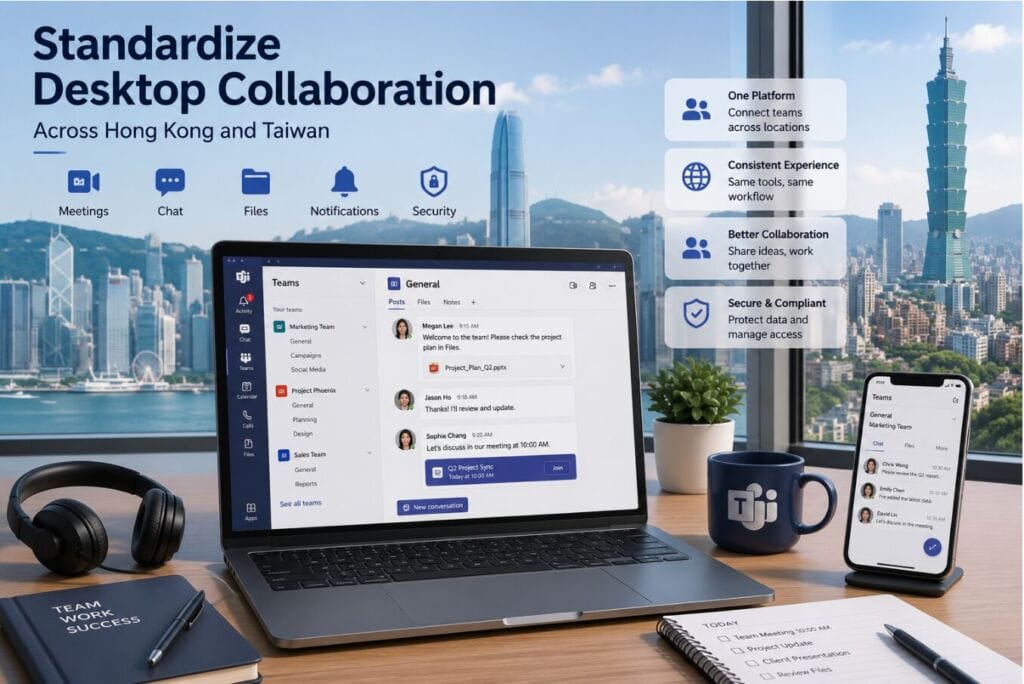
New employees should complete this process during onboarding rather than waiting until their first customer or internal meeting. Larger organizations may automate parts of the setup through device management software. Smaller teams can still achieve consistency with a written guide, screenshots and a brief verification call.
The instructions should be available in the languages used by the organization. Some teams may work effectively with an English guide, while others may benefit from Traditional Chinese notes. The process should also identify a clear support contact so employees know whether questions belong with IT, operations or a team administrator.
Review Security and Updates
Standardization must continue after installation. Desktop applications receive feature and security updates, and older versions may eventually stop working correctly. Organizations should decide whether updates occur automatically or are managed centrally.
Employees should not download replacement installers from unfamiliar websites when an update fails. They should use the approved update method or contact support. Unexpected sign-in notifications, unfamiliar devices and repeated authentication prompts should be reported promptly.
File permissions require regular review. When an employee or contractor leaves, the organization should disable the account, remove active sessions, transfer important files, review channel membership and remove access from personal devices.
Build Collaboration Around Consistency
Desktop collaboration works best when installation and configuration are treated as an operational process rather than an individual preference. Teams across Hong Kong and Taiwan benefit from clear decisions about access methods, account use, meeting language, notification levels and file storage.
The goal is not to eliminate flexibility. Employees can still use browsers and mobile devices when appropriate. Standardization simply creates a dependable default environment for daily work.
A well-designed framework reduces support requests, improves meeting readiness and makes shared information easier to locate. When employees follow the same setup and security practices, the collaboration platform becomes a reliable part of the organization’s everyday workflow.