
Introduction
Couldn’t unlock your iPhone because the passcode wouldn’t work? That’s probably one of the most annoying things, isn’t it? You know for a fact that you entered the correct passcode, but you still can’t get in.
Whatever it is, you don’t need to be locked out of your iPhone. There are a couple of ways to fix an iPhone passcode not working issue, starting from basic troubleshooting to using iPhone unlock software. Here are 7 ways that’ll help you get back into your iPhone and unlock it.
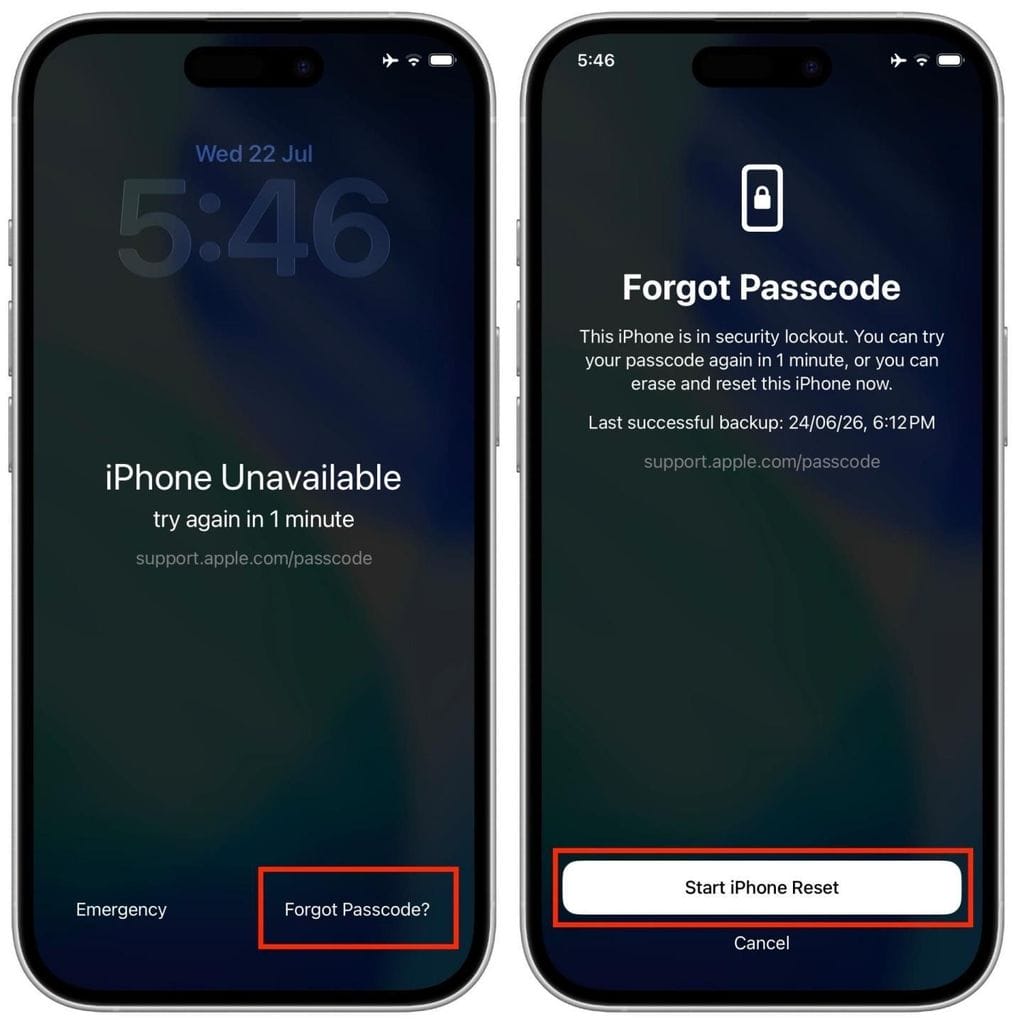
1. Double-Check the Passcode
Make sure you’re entering the right passcode before you do anything complicated. Yes, it’s obvious, but most of us can’t remember if we last used an old code or a new one, particularly if we recently changed it.
Also remember that the Face ID and Touch ID will ask for a passcode sometimes, such as when you restart the iPhone. Don’t get into a situation where you keep entering the wrong iPhone passcode and end up with the iPhone Unavailable screen and the need to wait to try again.
2. Try Your Previous Passcode
Recently changed your iPhone passcode and can’t remember the new one? Apple lets you try again. With iOS 17 and above, you can enter your old passcode if you’ve changed it within the past 72 hours to keep your iPhone – without erasing your data.
Step 1. Enter an incorrect passcode until Apple locks your iPhone and displays the Unlock iPhone screen. Click “Forgot Passcode?” option at the bottom of the screen.
Step 2. Choose Enter Previous Passcode (if that’s available) or iPhone Reset.
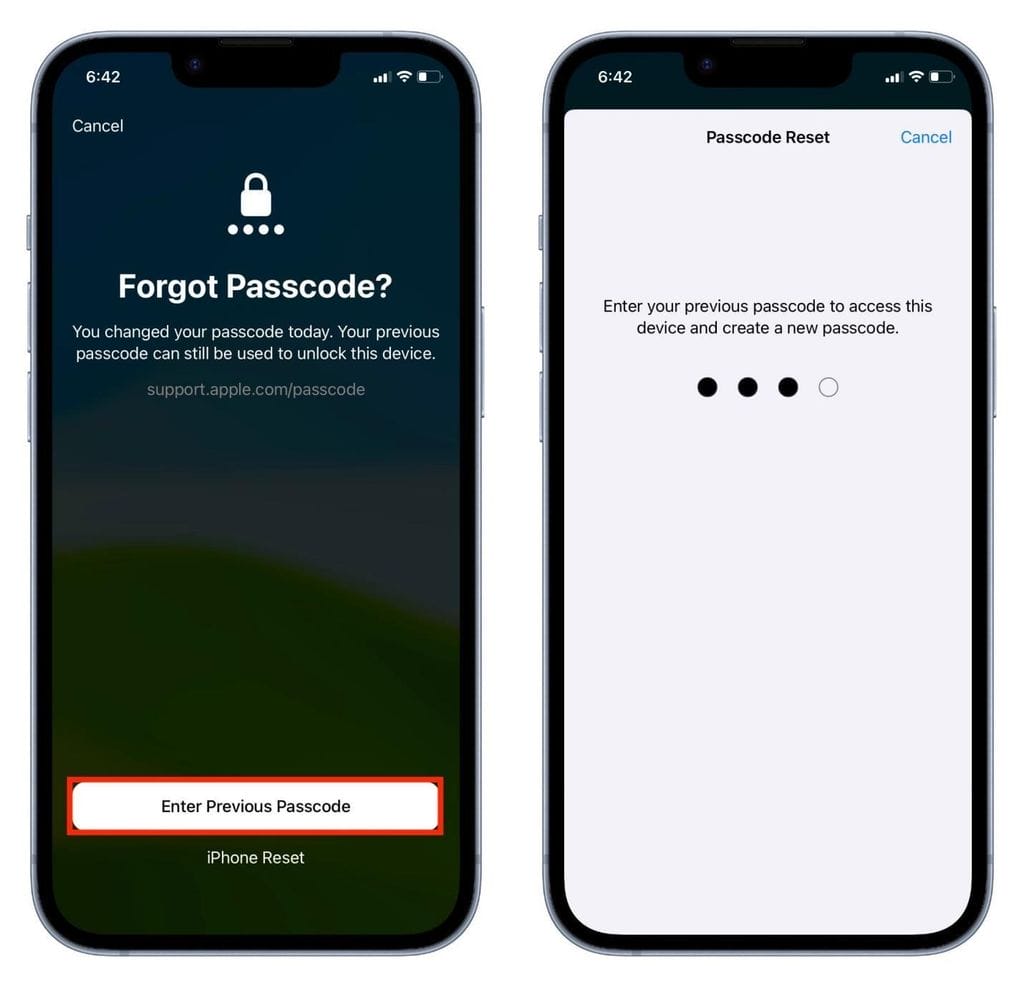
Step 3. Enter the previous passcode and continue the steps to change your passcode to create a new one.
This method is restricted to a time of 72 hours if the user didn’t manually expire their previous passcode.
3. Wait for the Lockout Timer to Expire
Got an iPhone Unavailable message with a countdown? No worries! If you’ve entered the wrong iPhone passcode too many times, then your phone will protect your data by disabling itself temporarily. And the more incorrect passcode entries you make, the longer the delay.
Just wait for the timer to run out, then type in the correct passcode – but don’t spam passcodes; doing so will just cause a longer lockout. But if the timer is gone and you forget your passcode altogether, you’ll have to attempt another iPhone unlock method.
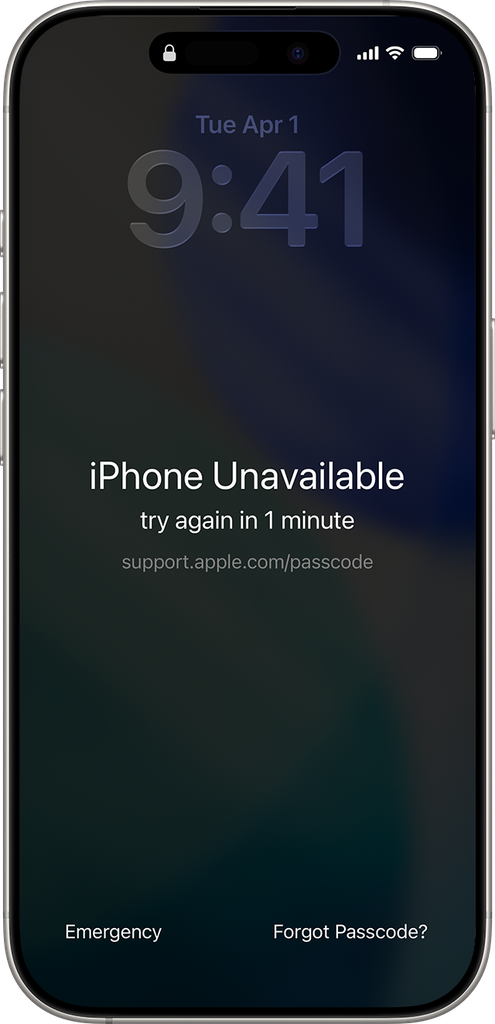
4. Use “Forgot Passcode?” to Reset the iPhone
Can’t remember your iPhone passcode at all anymore?
For an iPhone running iOS 17 or newer, there’s a way you can even reset it yourself from the iPhone Unavailable Screen. You’ll need an internet connection, Find My enabled, and your Apple Account password. Also, be aware that this procedure deletes the data on your iPhone. However, it is also possible for you to recover your data later from a backup.
Step 1. Enter an incorrect passcode until the iPhone Unavailable screen appears. Tap Forgot Passcode? at the bottom.
Step 2. Select Start iPhone Reset and enter your Apple Account password to sign out of your account.
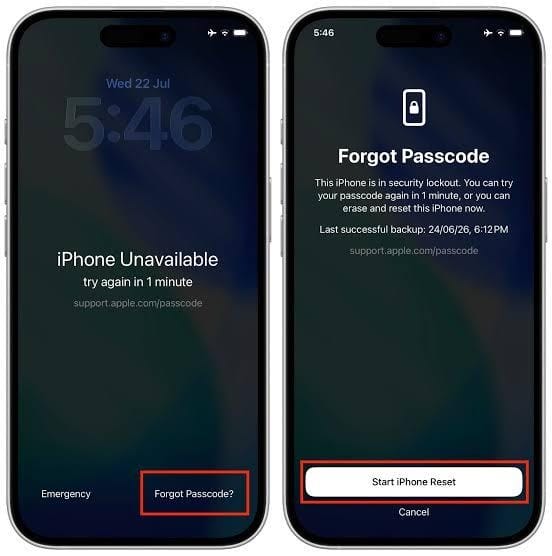
Step 3. Tap Erase iPhone and wait for the reset to finish.
5. Reset the iPhone With Recovery Mode
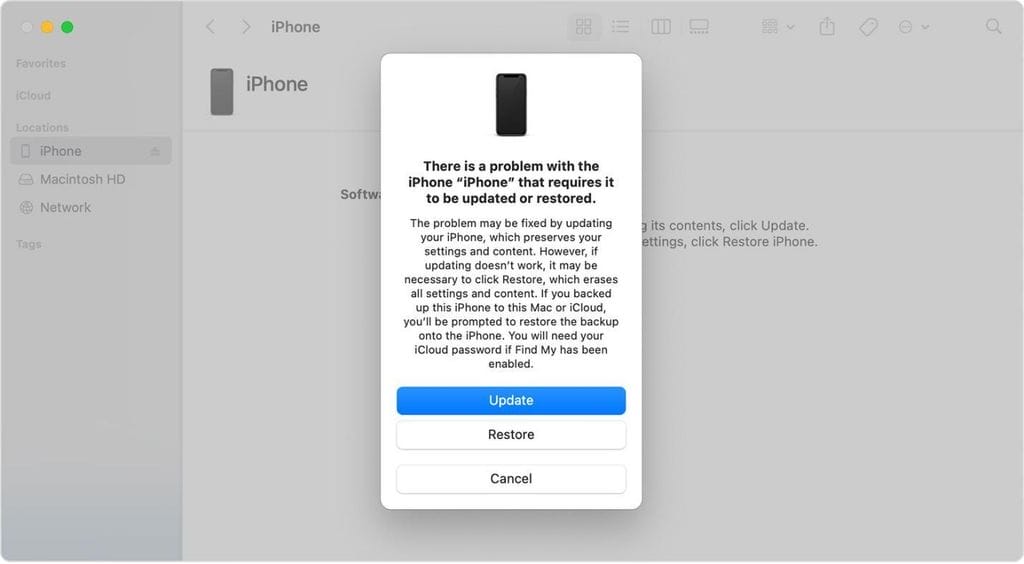
If the iPhone lock screen is still unresponsive, you can use Recovery Mode to unlock it and get back your access. What you need is a computer, be it your Mac or a Windows PC, a USB cable, and either the Finder on the Mac or the Apple Devices app on Windows. This method will reset your iPhone to factory settings by reinstalling iOS and deleting the device’s local data, even the passcode that you have totally forgotten.
Step 1. Turn off your iPhone and connect it to your computer while holding the appropriate buttons. Keep holding until the Recovery Mode screen appears.
Step 2. Open Finder or Apple Devices on your computer and select your iPhone.
Step 3. When prompted to Update or Restore, choose Restore to erase the device and remove the passcode.
Step 4. Wait for the process to finish, then set up your iPhone with a new passcode.
6. Try Dedicated iPhone Unlock Software
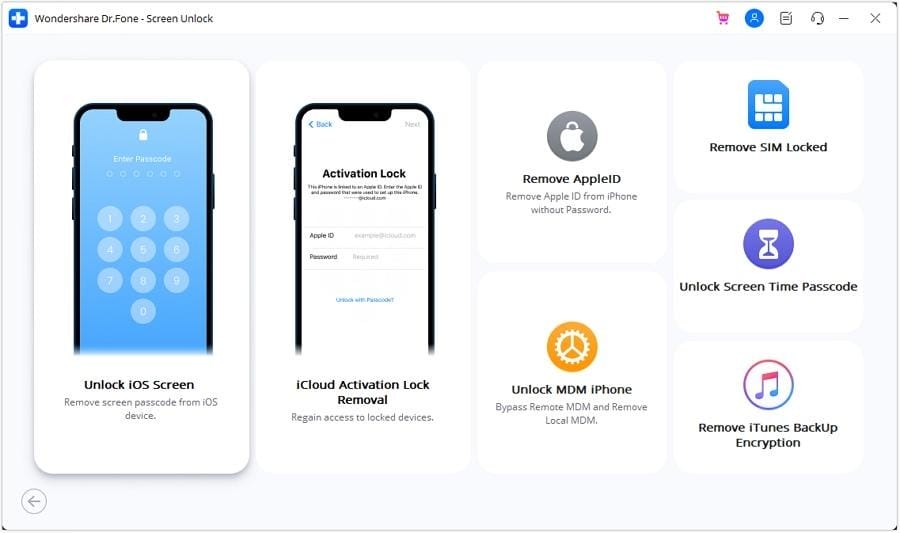
If you’re still unable to access, Dr.Fone – Screen Unlock (iOS) may come to your help. This iPhone unlocker tool provides support from iOS 7 to iOS 26 and can break 4-digit, 6-digit, and custom screen passcodes, as well as screen lock caused by Face ID or Touch ID. In addition, it also offers Apple ID deletion, iCloud lock removal through iCloud unlock mode, MDM removal, unlock Screen Time, and SIM unlocking. The software operates on both Windows and Mac with easy step-by-step guided on-screen actions.
Steps to unlock your iPhone using Dr.Fone
Step 1. Download and install Dr.Fone on your computer. Open the software and navigate to Toolbox > Screen Unlock > iOS > Unlock iOS Screen.
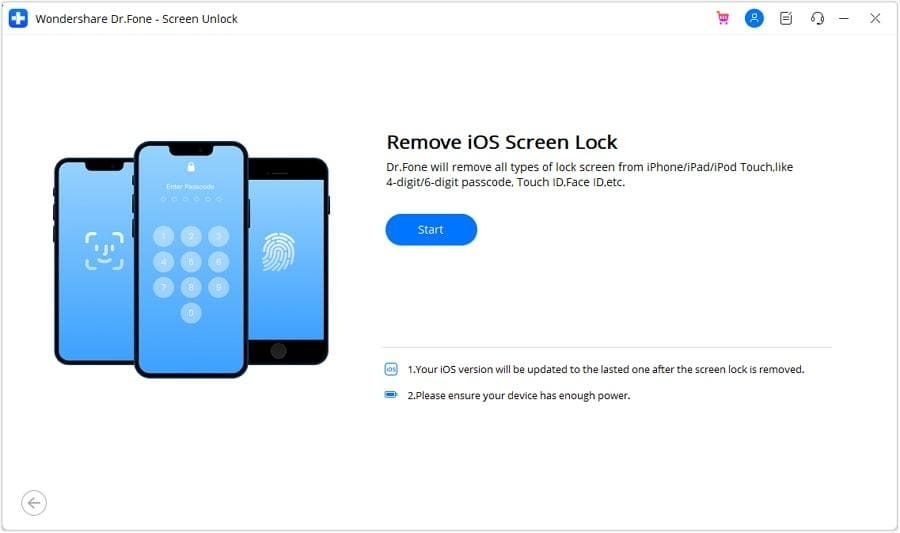
Step 2. Connect your locked iPhone to the computer and click Start. Follow the on-screen instructions to enter Recovery Mode. You can also try DFU Mode if Recovery Mode doesn’t work.
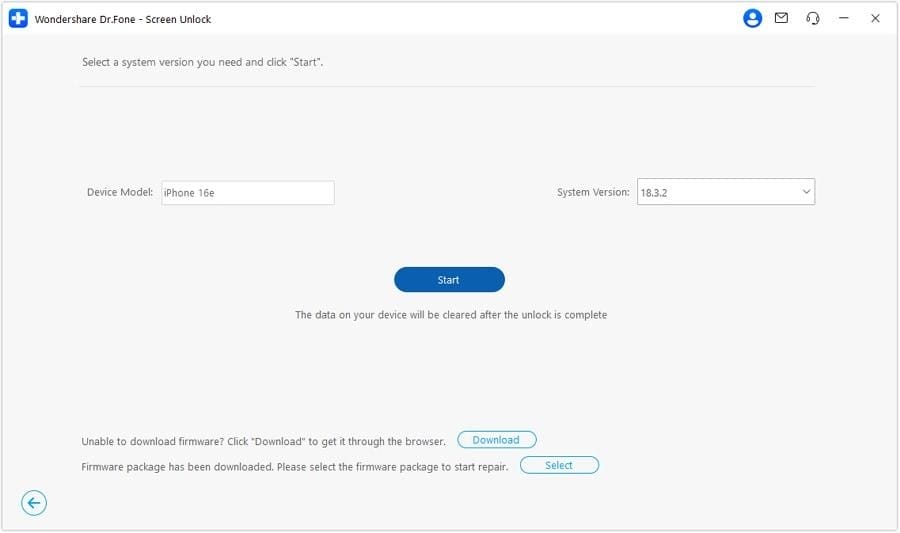
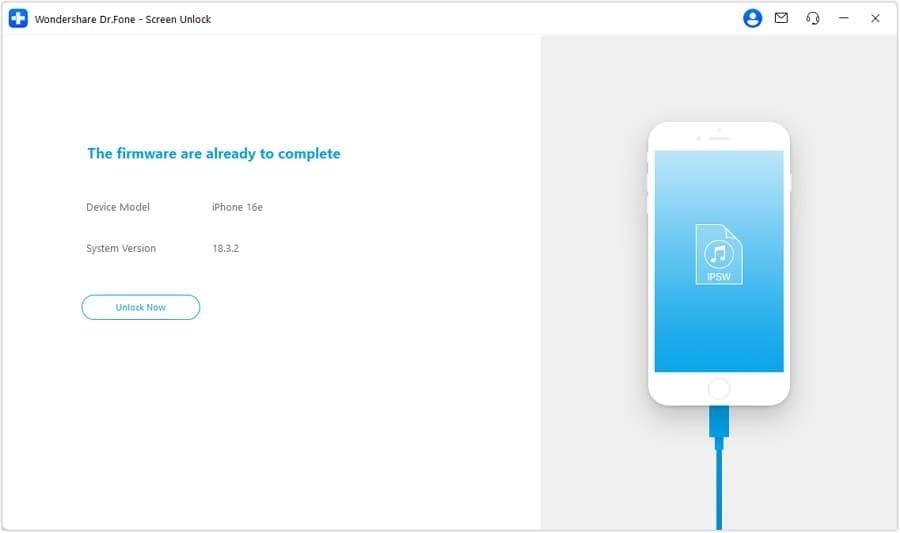
Step 3. Confirm your iPhone model and iOS version. Click Start to download the required firmware. Wait for the download and verification to finish.
Step 4. Click Unlock Now, enter the confirmation code, and select Unlock.
7. Contact Apple or an Authorized Service Provider
If in doubt, visit Apple Support, or bring it into an authorized service provider. They will be able to determine if you’re experiencing hardware, display or button failures, and will assist with failed recovery attempts. If you have ownership or account issues, make sure to bring your proof of purchase.
What “Unlock” Means in This Guide
Here, iPhone unlock screen means getting back into your device if the passcode has stopped working or you’ve forgotten your passcode. It is not about unlocking a carrier SIM lock or bypassing Apple’s Activation Lock. These are different problems.
Conclusion
Fortunately, an iPhone passcode not working doesn’t necessarily mean you’re permanently locked out. You can always troubleshoot by entering your passcode, trying your old passcode, or waiting out the lockout timer. If they don’t work, you may be able to reset your iPhone with the Forgot Passcode? option, Recovery Mode, or an iPhone unlock software like Dr. Fone. Contact Apple Support if none of the options work. Make sure to verify your backup and try the no-data-loss options first.