
A GLB file is a single binary file that holds a complete 3D scene: geometry, materials, textures, lighting, and animation. Technically, it is the binary form of glTF (GL Transmission Format), an open standard maintained by the Khronos Group, designed for efficient loading in real-time, web, and AR applications.
GLB solves a common problem with traditional 3D deliverables. Instead of juggling multiple files (an OBJ plus separate MTL and texture files) or dealing with slow base64-encoded data, GLB packs everything into one compact file. That makes it the de facto standard for delivering 3D content online, from e-commerce product viewers to social media AR filters.
Whether you are a game developer, web developer, or 3D artist new to real-time formats, knowing what a GLB file is and how to handle it will streamline your pipeline.
Definition and Structure of GLB Files
The internal structure of a GLB file is standardized, which keeps loading and parsing efficient. You do not need to memorize the binary layout, but understanding its main parts helps when inspecting or troubleshooting files:
- Header: The first 12 bytes contain metadata, including a magic number (“glTF”), the file version, and the total length.
- JSON Chunk: Contains a JSON-based description of the scene graph, materials, animations, and references to the binary data.
- Binary Chunk (BIN): Stores the actual geometric data (vertices, normals, indices), as well as texture images and other binary resources, in a format optimized for GPU processing.
Because GLB bundles these assets without requiring external files, a single .glb file is fully self-contained. According to the Library of Congress, the GLB container format consists of a 12-byte header, a JSON chunk, and an optional binary chunk that may contain some or all of the glTF asset’s resources.
This self-contained structure avoids base64 encoding, which inflates file sizes. The binary data is stored directly, keeping files compact and fast to parse. The Khronos Group’s specification defines the complete layout, designed to minimize file size while maximizing load speed for real-time renderers.
GLB vs. glTF: What’s the Difference?
The quickest way to understand GLB is to see it next to its parent format, glTF. Both fall under the glTF umbrella but serve different purposes:
- glTF (.gltf): A JSON-based file that acts as the “master” description of a 3D scene. It usually references external files for textures, binary buffers, and other resources. That makes glTF easier to inspect in a text editor, but it can lead to slower loading and a set of files to manage.
- GLB (.glb): The binary version of glTF. It embeds all referenced data, including geometry, textures, animations, and materials, in a single file. This makes it self-contained and faster to load over the web.
In practice, both formats describe the same 3D scene using the same glTF structure. The main practical differences are:
- File Size and Loading: GLB files are generally smaller because the binary data is not base64-encoded into JSON. This results in quicker network transfers and lower memory usage.
- Ease of Use: GLB is easier to share and deploy, as everything is in one file. glTF requires keeping track of dependencies, which can be tricky if files are moved.
- Development and Debugging: glTF files are easier to inspect manually since they are text-based. GLB is harder to read directly in a text editor.
- Streaming: glTF can be set up for progressive streaming, sending essential data first. GLB is typically loaded as a whole file, but its compact nature often compensates.
For most real-time and browser-based applications, GLB is the recommended choice. Its self-contained nature aligns well with modern GPU pipelines, which is why platforms like Facebook, Snapchat, and many e-commerce sites use it. glTF remains popular when you need to inspect, debug, or iterate quickly on text-based data.
When you need a format for interactive web content or game assets, GLB is almost always more efficient than glTF. For purely text-based work, you might prefer glTF. However, the glTF ecosystem increasingly relies on GLB as the primary delivery format, so assuming GLB is the preferred binary container is safe.
Pros and Cons of Using GLB Files
Like any technology, GLB brings clear benefits but also some trade-offs. Here are the main pros and cons to consider when deciding if GLB fits your project.
Advantages of GLB
- Compact, Self-Contained: Everything needed to render the model lives in a single file. This simplifies sharing, encourages consistency, and often reduces file size compared with multi-part alternatives.
- Fast Loading: Binary data minimizes parsing time and is GPU-friendly, making assets load almost instantly in browsers.
- PBR Material Support: GLB supports physically-based rendering (PBR), providing a consistent material workflow used by most modern engines and renderers.
- Animation Ready: Handles keyframe and skeletal animations in a standardized way, essential for game characters and interactive experiences.
- Broad Interoperability: Supported by virtually all modern tools.
Disadvantages of GLB
- Not Natively Editable: Binary encoding is not meant for manual text editing. You need a dedicated editor like Blender or a conversion tool to change the scene.
- Limited Light and Camera Data: glTF, and by extension GLB, is designed for the runtime, not for authoring. It does not natively support features like animation curves or certain render-specific post-processing effects.
- Potential for Misuse in Complex Production Pipelines: Since GLB represents a static realization of your asset, not an editable origin, you will need to keep archival formats like FBX or USD for ongoing work.
- Possible Texture Compression Trade-offs: While advances like Draco and KTX2 mitigate this, file size can balloon when you embed uncompressed textures storing high-res artwork.
GLB excels in real-time, web, and AR use cases, where its operational advantages, fast load and compact delivery, shine. For complex, in-depth production scenes, you might handle large assets across a wider range of formats.
Common Use Cases for GLB Files
Because GLB is a universal format in the runtime 3D space, it powers a wide variety of applications:
- Web-Based 3D: Product configurators, model galleries, interactive data visualizations. GLB lets a site send viewers a full 3D asset along with its textures in a single file.
- AR and VR: Desktop and mobile AR experiences rely heavily on GLB to deliver models quickly. Many social media filters are dynamic GLB scenes rendered in a browser or camera environment.
- Game Assets and E-Commerce: From prototype pieces in game development to product models in online stores, its lightness and wide engine support suit quick-view and checkout experiences.
- Real-Time Collaboration and Review: Teams can share a packaged 3D asset with collaborators, reducing missing-file and version-mismatch problems.
Because of its broad footprint across WebGL, three.js, Babylon.js, and social platforms, GLB is a safe choice when you aim to place your 3D work into an online or real-time pipeline.
How to Open and View GLB Files
If you simply want to preview a .glb file on a computer or phone, whether it is a downloaded character, environment, or scan, there are several straightforward methods.
Before installing any software, the fastest way to check a GLB file is the free https://www.meshy.ai/3d-tools/online-viewer/glb.
View with built-in OS support
Microsoft 3D Viewer is not preinstalled on current Windows 11 systems; it was deprecated in 2026 and removed from the Microsoft Store in July. macOS also does not natively preview GLB files. Use a browser-based GLB viewer for a quick check, or open the file in Blender for editing.
Spot-Check in an Online Viewer
For a quick browser-only inspection, Meshy’s GLB Viewer requires no account. It lets you rotate, zoom, and inspect the model’s geometry and materials before opening an editor.
Here is a quick step-by-step path to use a browser viewer for validating your GLB:
- Step 1: Open Meshy’s GLB Viewer page.
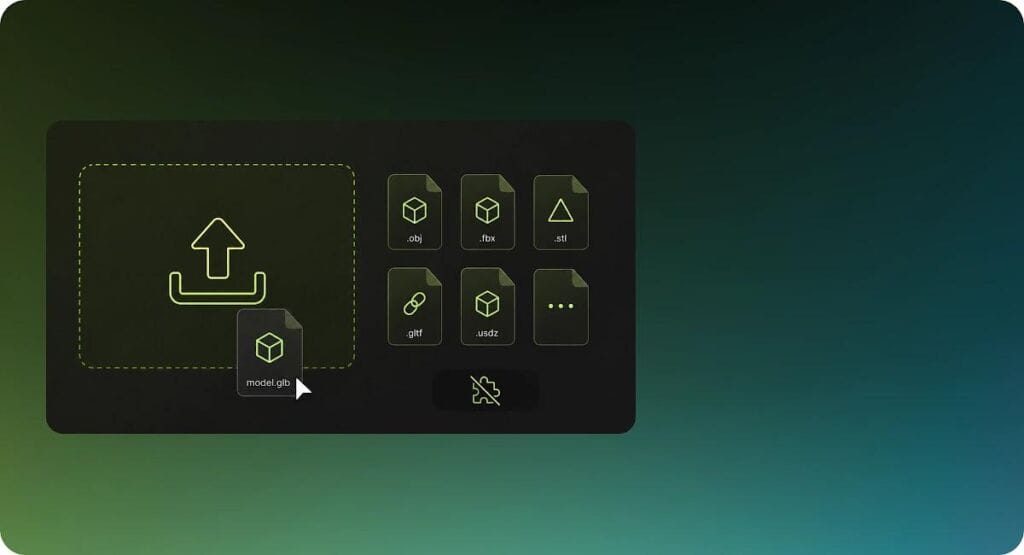
- Step 2: Upload your .glb file by dragging and dropping it or clicking the upload button.
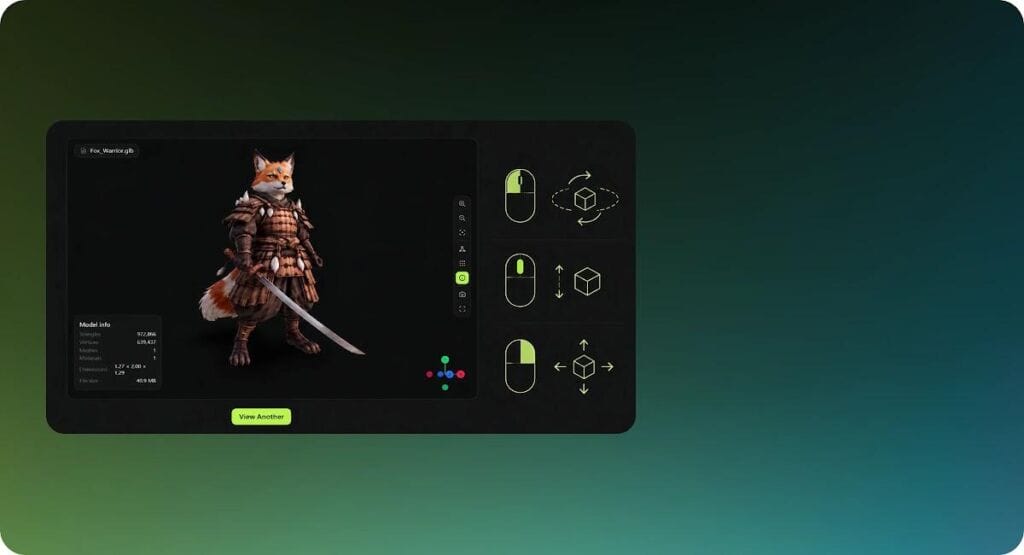
- Step 3: Explore the model’s geometry and materials by rotating, panning, and zooming.
- Step 4: Inspect the scene tree and material list to confirm all expected parts and textures are present.
This approach helps flag missing textures or broken meshes before you bring the model into an external editor, saving time and network cost.
Load as a Three.js Model
Many developers load GLB files directly in three.js using the GLTFLoader. A minimal code snippet to load and add the model to your scene looks like this:
This approach works in any browser, letting you control camera, lighting, and animation.
Open with Dedicated Desktop Software
Blender, the free and powerful 3D modeling tool, is a practical choice for those needing more control. It reads GLB, glTF, OBJ, FBX, and other formats. Here is how to open a GLB in Blender:
- Step 1: In Blender, go to File > Import > glTF 2.0.
- Step 2: Use the file browser to find and select your .glb file.
- Step 3: Click the “Import glTF 2.0” button on the top right.
Immediately after loading, the model may appear solid gray because the materials are not connected to the viewport’s textures. One workaround is to switch the viewport shading mode to “Material Preview.” Once located, you can inspect everything here with transparency, but if you need to see raw assets, or textures are lost, you will need to consider the export steps in the next section.
How to Export GLB Files from Blender
If you are creating your own model from scratch, or you have downloaded a .glb to modify, you might need to export it from Blender again. GLB is a target format, not necessarily an authoring format; it is helpful to keep an organized Blender scene for complex characters or scenes. Yet Blender gives you everything you need to create an optimized .glb.
Before exporting, check your materials because the built-in exporter only honors a limited glTF material, the Principled BSDF node. If you have complex shader setups, the Export Log may silently drop many bits without throwing visible errors. For characters intended for AR or online VFX, keep it simple: use a Principled BSDF node with a Base Color texture plugged straight in.
Export Steps:
- Step 1: Select your model(s) in Object Mode, making sure the collection or objects to export match the Include selection. If you want to use transform orientation and animation, leave the other settings at defaults.
- Step 2: Go to File > Export > glTF 2.0.
- Step 3: In the right-hand panel, expand the “Format” dropdown and select glTF Binary (.glb). This is a common point where animation complexity can be lost; the .glb format keeps everything in a single file.
- Step 4: In the Include list, you may tick “Selection Only” if you only need the current object. Under the Transform tab, leave “+Y Up” enabled unless you are targeting another engine like Unreal or Unity (which sometimes prefer -Y).
- Step 5: Expand the Geometry section. Keep UVs and Normals checked, plus Materials, Images, and Vertex Colors. Now hit export. In most scenarios, you will want to enable Apply Modifiers as well, to bake any subdivision or mirror.
- Step 6: Double-check Animation possibilities. If you do not want to include animation, leave them unchecked. Otherwise, tick Animation > + Always Sample Animations.
- Step 7: Stay aware that Blender exports generally do not conserve custom Shader Graphs. If you have added nodes on top of diffuse or similar, you will need to wire them manually according to the nature of glTF.
- Step 8: Hit Export glTF 2.0 to the chosen file path.
After exporting, load the file to verify textures and scaling in the destination software. Expect that display colors may shift according to your particular color management. Blender usually shows a 2.2 conversion route that mostly does a good job to GLB.
Pitfalls to Avoid:
- Complex shader networks: This is the #1 cause for invisible textures in your GLB. Keep the shader connections to Principled BSDF’s Base Color, Metallic, Roughness, and Normal inputs.
- Float / Mis-matched scale: Certain tools expect a normalized unit (typically meters) compatible with the typical size for each quick. If your asset is exported at centimeters, your GLB might be far too big at runtime.
- Unbased Transform: If your target engine expects a specific coordinate system, you may need to adjust the export root node to match Blender and Unity conventions.
How to Convert GLB to Other Formats
Whether you need to bring a GLB into a traditional DCC for advanced texture work or push it to a 3D printer, conversion is usually a single step away. Head straight to Blender. Here are proven tactics:
Converting from GLB to OBJ, FBX, or STL using Blender:
- Step 1: Open Blender, then go to File > Import > glTF 2.0 and select your .glb.
- Step 2: Check the imported model for textures; you may need to switch the Viewport Shading to Material Preview to see them.
- Step 3: Proceed to File > Export. Choose the particular file type:
- For OBJ, choose Wavefront (.obj) and enable Write Materials. The .mtl file references textures but does not embed the image files, so share the .obj, .mtl, and texture images together. For FBX, select FBX (.fbx) and verify animation compatibility in the destination tool. For STL, export a watertight mesh intended for printing; colors and textures are not retained.
Use Meshy’s file Converter and other online tools
Meshy’s browser-based file converter is ideal for quick format conversion and preview. For complex animation editing or production-specific adjustments, finish the asset in Blender after conversion.
Conversions can change the asset’s capabilities. GLB-to-OBJ commonly separates materials into an .mtl file and does not preserve animation, while GLB-to-STL removes colors and textures and keeps only printable geometry.
If the target engine requires editing, that is more time you will spend later debugging, which typically outweighs the file download speed benefits of sticking with binary.
Conclusion
GLB is a strong default for real-time delivery because it packages geometry, materials, textures, and animation in one efficient file. Validate the asset first in an online viewer, then use Blender when the model needs detailed editing or production polish.
Take the quick test: switch your model to a browser like https://www.meshy.ai/3d-tools/online-viewer/glb to confirm setup quality. Being able to catch color spaces and wire rig errors in preview light can spare many wasted moments moving forward.