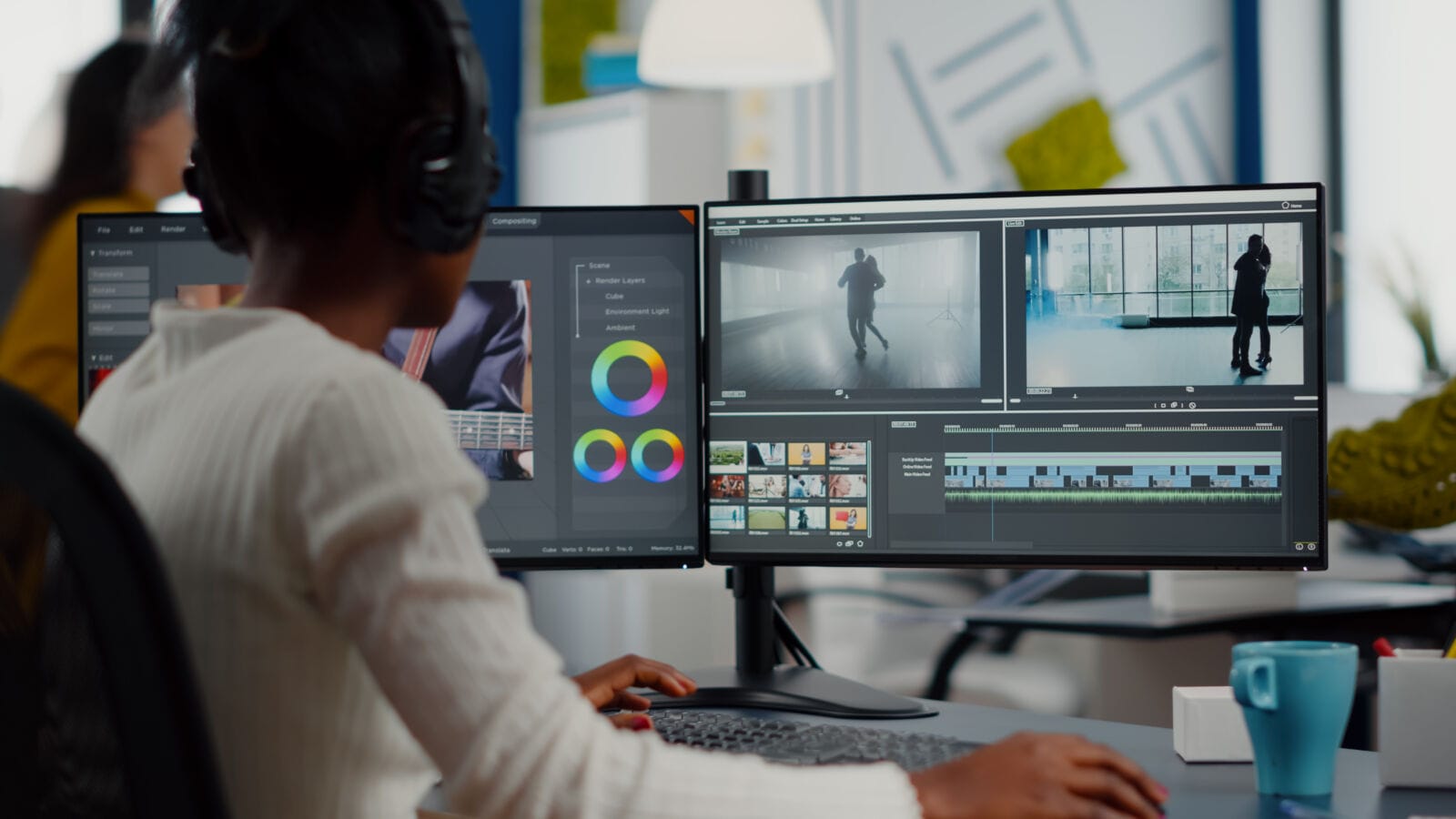
Wistia’s most recent State of Video report found that businesses now publish more video than ever, and the average company holds hundreds of clips in its library. Most of that footage was never shot for a 4K screen. A 2019 listing walkthrough, a phone-recorded trade-show demo, an old brand sizzle reel — they all looked fine at the time, and they all look soft today. The gap is not creative. It is technical. Modern displays, streaming apps, and paid-social feeds now render footage far more harshly than the cameras that captured it. So the question for marketing and real-estate teams in 2026 is simple: reshoot everything, or upgrade what you already own? This guide walks through both levers — online AI enhancement and SDR-to-HDR conversion — with a real test and specific numbers.
Why Video Quality Became a Business Problem, Not a Creative One
Display hardware moved faster than most content libraries. Grand View Research and similar market trackers put HDR-capable TV shipments well past the halfway mark of new sales, and nearly every flagship phone since 2021 ships an HDR panel. Streaming platforms, connected-TV ad slots, and console storefronts now assume high-resolution, high-dynamic-range input. Footage that predates those standards reads as dated the moment it plays, and viewers register the difference in a fraction of a second even when they cannot name what looks wrong.
For a business, that has a cost. A blurry property tour raises bounce rates. A grainy testimonial undercuts a premium brand. HubSpot’s marketing research has repeatedly linked video quality to perceived trust, and paid-social platforms actively down-rank low-resolution creative in the auction. The footage itself may be fine. The story it tells, the property it shows, the message it carries are all intact. The container it lives in is simply out of date, and reshooting a full archive is rarely in the budget or the calendar.
The scale of the problem is easy to underestimate. A single brokerage or agency can accumulate thousands of clips across a few years — listing walkthroughs, drone passes, agent intros, event recaps. On YouTube alone, creators upload volume measured in the hundreds of hours of new video every minute, and much of the competitive benchmark a viewer sees today is native 4K. Against that backdrop, an older library does not just age quietly; it visibly loses ground each quarter as audiences grow used to sharper, brighter footage on every screen they own. The asset is still valuable. It simply needs a technical refresh to compete on today’s terms.
The Two Levers: Enhancement and Dynamic Range
There are two distinct fixes, and teams often confuse them. The first is enhancement: raising resolution, cutting noise, and sharpening detail so a 480p or 1080p clip holds up on a large screen. The second is dynamic range: converting standard footage (SDR) into HDR so highlights and shadows carry the depth modern panels can show. Both matter, but they solve different failures, and knowing which one you actually have saves time and rework.
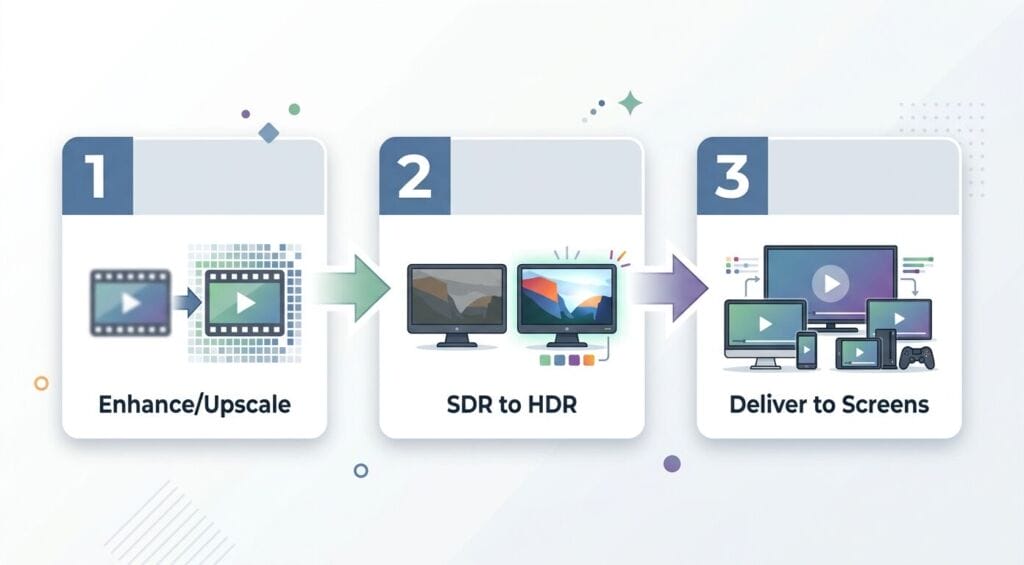
Enhancement solves softness. HDR conversion solves flatness. A property video can be pin-sharp and still look lifeless if the bright window blows out to pure white and the room falls to black. Conversely, a clip with beautiful contrast can still read as amateur if the resolution is soft on a large screen. You often want both, in sequence — enhance first, then map to HDR — which is exactly the workflow the rest of this guide is built around.
A Combined Workflow That Covers Both Levers
Once you know the criteria, the practical goal is a single workflow that handles enhancement and dynamic range without bouncing footage between three apps. In practice that means an online enhancer for the resolution-and-noise pass, paired with an HDR converter for the dynamic-range pass, ideally from the same ecosystem so files move cleanly between the two.
For the enhancement pass, an online cloud enhancer such as UniFab’s Video Enhancer AI runs entirely in the browser on cloud GPUs, upscaling up to 2x (1080p to 4K), reducing noise and recovering lost texture, with free credits for new accounts and no watermark on exports. It accepts MP4, AVI, and MOV, processes on the server so a modest laptop is enough, and supports batch jobs for archive work. The honest limitation is worth stating plainly: the online tier caps at 2x, so a bigger resolution jump — or archival film that needs 8K — belongs on the desktop app instead. For everyday marketing, brand, and real-estate footage, though, 2x is exactly the range where the payoff is largest and the source still has enough detail to reconstruct convincingly.
WOMEN IN REAL ESTATE: The Most Influential Women in Commercial Real Estate for 2026
WOMEN IN BUSINESS: The Most Influential Women in Arizona for 2026
SDR to HDR: What Converting Dynamic Range Actually Does
Enhancement makes a clip sharper. It does not add dynamic range. That is a separate problem, and it is the one that separates footage that merely plays on a modern TV from footage that looks made for one. If your delivery targets are connected-TV ads, streaming platforms, or console storefronts, this step is effectively mandatory rather than optional.
Standard footage is usually 8-bit and graded for the older Rec.709 space. HDR asks for 10-bit or more, wider color, and far brighter highlights. You cannot simply crank brightness; that clips detail and looks worse, not better. The correct method is AI inverse tone mapping, which reconstructs plausible highlight and shadow information the original capture compressed away. Done well, a sunlit window keeps its frame instead of blowing to white, and a shadowed interior keeps texture instead of crushing to black. The result reads as native HDR rather than a brightened SDR file pretending to be one.
For the conversion pass, UniFab’s SDR to HDR Converter uses AI inverse tone mapping to lift 8-bit SDR into 10-bit HDR, outputting both HDR10 (up to 1,000 nits) and Dolby Vision (up to 12-bit and 4,000 nits, with dynamic metadata), and covering the DCI-P3 and Rec.2020 color gamuts. It offers four output modes — 4K UHD, QHD, FHD, and Fast — and runs on cloud FabCloud or a local GPU, with a free trial that carries no watermark. The honest caveat: the deepest path, full Dolby Vision mastering on a local GPU, is a Windows-desktop workflow, while macOS teams are served by the FabCloud version. For PS5, Xbox Series X, streaming, or a 4K Blu-ray master, that HDR pass is what makes recovered footage look as though it was shot for today’s panels.
How to Enhance a Marketing Clip Online in Four Steps
Most teams do not want to install desktop software or wait on IT. Browser-based enhancement has closed enough of the quality gap to handle everyday marketing footage, and the process is short enough to run between meetings. The core loop is the same regardless of which cloud tool you use, and it looks like this.
- Open the tool and upload. Access a cloud enhancer in your browser and drag in the source clip — no install, and MP4, AVI, and MOV are the common accepted inputs.
- Pick the upscale target. Choose your output resolution. A 480p social clip typically maps to 960p; a 1080p brand video maps to 4K. Enable denoise if the source is grainy.
- Let the cloud GPUs process. The heavy lifting runs server-side, so a mid-range laptop or even a tablet can drive the job while you work on something else.
- Review and export. Compare the preview against the original, confirm the detail looks natural rather than over-sharpened, and download the MP4.
Keep the source file. If a clip needs a resolution jump beyond what an online tier allows, that same file becomes the input for a desktop pass later, so nothing about the online route locks you out of a deeper upgrade down the line.
What to Look For When Choosing an Enhancement or HDR Tool
The market is crowded, and most buyers waste time comparing brand names when they should be comparing capabilities. The useful question is not “which tool is popular” but “which capabilities does my delivery pipeline actually require.” Five criteria decide almost every business case, and they map cleanly onto how your team ships video.
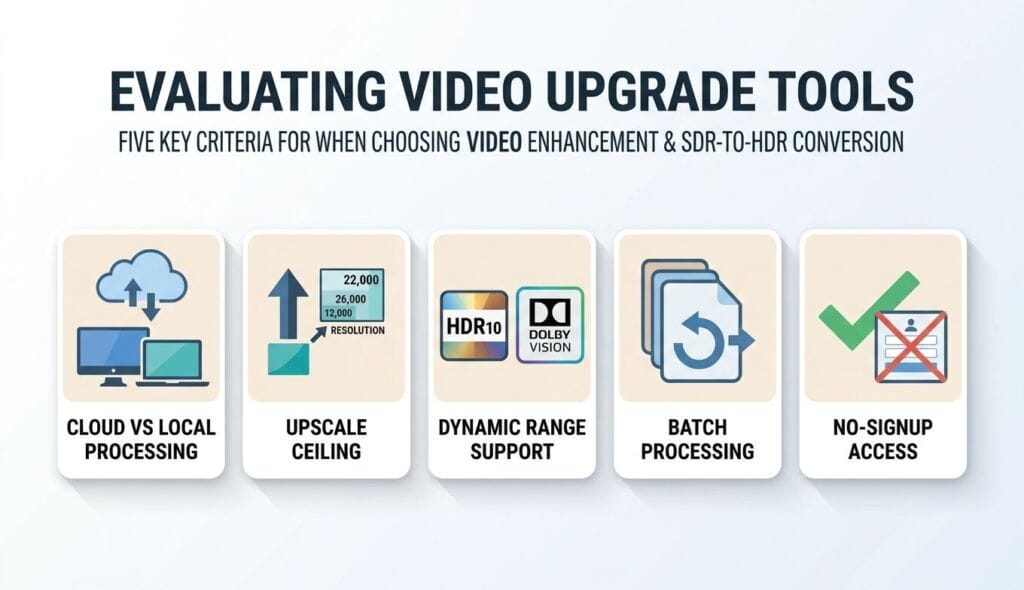
- Cloud versus local processing. Cloud tools run on server GPUs, so any laptop or tablet can drive the job and there is nothing to install — ideal for marketing and listing teams. Local desktop tools keep footage on your machine and can push higher fidelity, but they demand a strong GPU and patience. Decide where your work lives before anything else.
- Upscale ceiling. Ask how far a tool can lift resolution. A 2x online pass (1080p to 4K) covers the vast majority of social and real-estate refreshes. Archival film mastering that needs 8K or a very large jump from a degraded source belongs on a heavier desktop workflow. Match the ceiling to the source, not to the biggest number on the page.
- HDR standard: HDR10 versus Dolby Vision. HDR10 is the widely supported 10-bit baseline and a safe default for most streaming and TV delivery. Dolby Vision adds dynamic, scene-by-scene metadata and higher peak brightness for platforms and devices that support it. A tool that can output both gives you room to grow without switching apps mid-project.
- Batch processing. Refreshing an archive is rarely one clip. If you have twenty listing walkthroughs to modernize, per-file manual handling is a tax. Batch support turns an afternoon of clicking into a queue you set once and collect later, and it is the single feature most underrated by first-time buyers.
- No-signup and clean output. For quick evaluation, a tool you can try without an account and without a watermark on the export is worth far more than one that gates everything behind a form and stamps trial output. A watermarked export is fine for a preview and useless for a live campaign, so confirm clean output before you commit a process to it.
Score any tool against those five and the shortlist writes itself. The right pick is rarely the most powerful option on paper — it is the one whose processing model, ceiling, HDR support, batch handling, and trial terms match how your team actually delivers.
A Real Test: Upgrading a 2019 Property Video for a Listing Refresh
Consider a common, verifiable scenario a brokerage marketing team faces: a 1080p walkthrough shot in 2019 on a gimbal-mounted phone, roughly three minutes long, that now looks soft next to competitors’ 4K tours. Reshooting means re-staging a sold-adjacent property — not an option. Upgrading the existing file is, and it maps directly onto the two-lever workflow above.
In a test pass, the clip runs through the online enhancer at a 1080p-to-4K target with denoise on. On cloud GPUs, a three-minute clip processes in a handful of minutes rather than the hour-plus a local upscale can take on a mid-range laptop. The output is visibly sharper: window mullions and countertop edges resolve, and low-light grain in the hallway drops away. Then the enhanced file gets an SDR-to-HDR pass in 4K UHD mode. The bright kitchen window, previously a flat white panel, recovers frame detail; the shadowed staircase keeps depth instead of crushing to black.
The measurable outcome is a two-stage upgrade with no reshoot: resolution roughly quadrupled and dynamic range extended, delivered in under fifteen minutes of active work for a short clip. For a marketing team, that turns a dead archive entry into refreshed, ad-ready inventory. A before-and-after screenshot pair — original frame beside the enhanced-plus-HDR frame — is worth capturing for the record, since the difference is easiest to trust when you see the same frame twice.
The economics are worth spelling out. A fresh property shoot with a videographer, drone operator, and edit can run into four figures and take days to schedule around a live listing. The upgrade path costs a fraction of that and runs the same afternoon. Multiply it across an archive: a team that refreshes even twenty older clips a quarter reclaims a meaningful share of its past production spend instead of writing it off. The catch to test for is honesty — if the source frame is severely degraded, no upscale fully rescues it, so the workflow rewards footage that was decent to begin with and simply out of step with today’s screens.
Business Scenarios Where the Upgrade Pays Off
The two-lever workflow is not a niche trick; it applies anywhere a business already owns video that outlived the screens it was shot for. A few scenarios recur across Arizona businesses in particular, where property, tourism, and product marketing all lean heavily on visual proof.
- Real-estate listing tours. Walkthroughs and drone passes are the highest-value archive most brokerages own, and buyers now watch them on large TVs and 4K phones. Enhancing and converting a soft 2019 tour keeps a still-relevant property competitive without re-staging it.
- Product demos and e-commerce clips. A crisp, well-lit product video lifts conversion, and older demos of evergreen products are cheap to refresh. Enhancement sharpens the detail that sells; HDR makes materials, finishes, and lighting read true on modern panels.
- Social and paid-media ads. Platforms down-rank low-resolution creative, so upgrading a proven ad clip can recover reach the original earned before the auction changed. A quick online pass often costs less than the media spend it protects.
- Archival brand footage. Sizzle reels, event recaps, and founder stories carry brand equity that does not expire, only ages visually. A resolution-and-HDR refresh lets a company reuse its history on today’s channels instead of shooting replacements that say the same thing.
In every one of these cases the math is the same: the asset already exists, the story still lands, and only the technical container needs modernizing. That is a far cheaper proposition than reshooting, and it scales across a library in a way a reshoot never can.
A Buyer’s Guide: Matching the Approach to the Job
Start with where the work lives. If your team wants speed and zero installs — the typical case for social and listing refreshes — a browser enhancer with an HDR path attached is the least friction. If you master cinematic or archival film and need the last few percent of grain fidelity, a heavier desktop workflow earns its slower processing, and there is no shame in using one tool for everyday jobs and another for the rare showcase piece.
Volume matters next. A studio pushing hundreds of clips a month should weigh batch throughput heavily, because the number of files, not the polish of any single one, drives the cost. A brand team touching a dozen clips a quarter rarely needs that same horsepower and should optimize for simplicity instead.
Finally, decide whether HDR is a requirement or a nice-to-have. If your delivery targets are connected-TV ads, streaming, or console storefronts, HDR is effectively mandatory, and an approach that handles enhancement and dynamic range together saves a round-trip between apps. If you only ever ship to standard web players, enhancement alone may be enough for now — though the direction of the market suggests HDR will not stay optional for long.
Frequently Asked Questions
Can AI really improve low-resolution video quality?
Yes, within limits. AI upscaling reconstructs plausible detail and cuts noise, so a 1080p clip can hold up at 4K. It cannot invent information that was never captured, so extreme jumps from very low sources look softer than native footage.
Is there a free online AI video enhancer with no watermark?
Some tools offer free credits or a trial with clean exports. UniFab’s online enhancer gives new accounts free FabCloud credits and exports without a watermark, which matters because trial watermarks make output useless for a live campaign.
What is inverse tone mapping?
It is the AI technique behind SDR-to-HDR conversion. Instead of just brightening a clip, it reconstructs highlight and shadow detail the original 8-bit capture compressed, then maps the result into a 10-bit HDR container like HDR10 or Dolby Vision.
Does converting SDR to HDR actually look better on modern TVs?
On an HDR panel, yes — highlights and shadows carry more depth and the image reads as native. On an older SDR screen the difference is minimal, so convert only when your delivery target supports HDR.
Do I need a powerful GPU to enhance video with AI?
Not for cloud tools. Browser-based enhancers run the processing on server GPUs, so a modest laptop or tablet is enough. Local desktop apps do lean on a strong GPU for speed and are better suited to heavy archival work.
How long does it take to upscale a marketing video?
For a short clip, minutes on cloud GPUs. A three-minute 1080p-to-4K pass typically finishes in a handful of minutes online, versus an hour or more for a local upscale on mid-range hardware.
Which is better for streaming delivery, HDR10 or Dolby Vision?
HDR10 is the widely supported baseline and a safe default. Dolby Vision adds dynamic metadata and higher peak brightness, so choose it when your platform and target devices explicitly support it.
Verdict
For most marketing and real-estate teams, the practical move in 2026 is not reshooting an archive — it is upgrading it. Enhance the footage to recover resolution and cut noise, then convert to HDR when the delivery target warrants it. Judge tools by capability, not brand name: cloud versus local, upscale ceiling, HDR10 versus Dolby Vision, batch support, and clean trial output. For teams that want speed, browser access, and both levers in one ecosystem, a combined online-enhancement and dynamic-range workflow turns dated inventory into ad-ready assets in minutes. Match the approach to the job, keep your source files, and let the archive earn its keep.