
When creating animations in Filmora, you have two powerful options for adding motion to your edits: traditional keyframes and the Pen Tool. Both methods allow you to control movement, timing, and create smooth transitions, but choosing the right one for your project can be confusing. Do you need the straightforward precision of keyframes for a simple zoom, or the custom control of the Pen Tool to draw a unique, curved motion path? This comprehensive guide breaks down the features, pros, and cons of the Filmora Pen Tool vs. Keyframes so you can confidently select the perfect animation tool for your next professional video edit.
LOCAL NEWS: Phoenix housing market outpaces national trends again in 2025
INDUSTRY INSIGHTS: Want more news like this? Get our free newsletter here
Part 1: Understanding Traditional Keyframes in Filmora
One of the easiest methods to add motion to your edits is keyframes. You can imagine them as points that inform Filmora where an element is starting and how it should be at a later point. If you put another keyframe further along the timeline, Filmora goes through all the frames between those two points and makes the movement smooth without you having to change each frame manually.
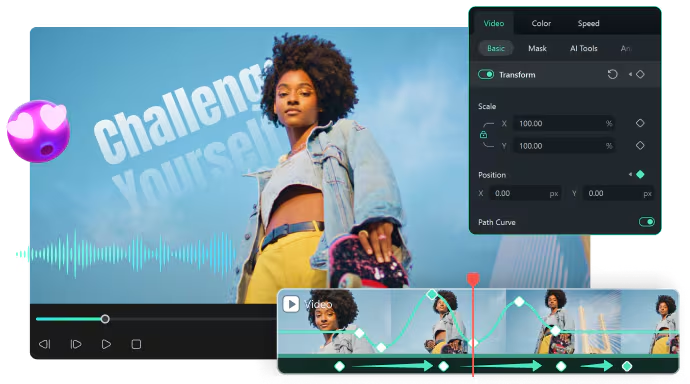
You’ll use keyframes for everyday animations such as:
- Moving a logo from one corner to another
- Fading text in or out
- Adding a gentle zoom to a product shot
- Rotating icons or graphics for emphasis
This technique is particularly effective when the goal is neat and predictable movement. It maintains the simplicity of your workflow while still providing you with sufficient control to make your changes appear refined and deliberate.
Part 2: Advanced Animation with the Filmora Pen Tool
The Pen Tool unlocks a different layer of creativity inside Filmora. Instead of animating simple property changes, you can draw the exact motion path you want on the canvas. This gives you curved routes, freeform shapes, and visually dynamic motion that’s hard to achieve with standard keyframes alone.

Here’s what the Pen Tool excels at:
- Designing flight routes or travel paths
- Creating motion-following graphics
- Revealing text or shapes through custom masks
Filmora’s dedicated Pen Tool interface makes these animations feel natural even if you’ve never used advanced software like After Effects. You draw the line and adjust anchor points, and Filmora animates the object along your path with smooth, cinematic precision.
Part 3: Side-by-Side Comparison Table — Pen Tool vs Traditional Keyframes
Neither of the two animation methods in Filmora is worthless; however, they differ in their functionality. To put it simply, the main idea of keyframes is changing the element’s properties as time goes on and the Pen Tool allows you to define the actual motion. By contrasting them, one can more easily decide which method to use.
| Feature | Traditional Keyframes | Pen Tool |
| Type of Motion | Straight or lightly curved animations | Freeform, hand-drawn paths |
| Control Style | Adjusts properties (scale, opacity, rotation) | Controls the motion route using anchor points |
| Best For | Clean, simple movements and UI-style animations | Dynamic paths, reveals, and creative storytelling |
| Learning Curve | Very beginner-friendly | Slightly higher but still intuitive in Filmora |
| Precision Level | Great for timing and property control | Excellent for shaping detailed or curved motion |
| Creative Range | Moderate | High—ideal for artistic or custom animation |
| Common Uses | Text fades, and the logo slides and zooms | Travel paths, curved text, motion-following graphics |
This comparison shows that neither tool replaces the other. Instead, they complement each other, giving you flexibility whether you’re polishing a simple transition or designing a full motion-graphics sequence.
Part 4: Keyframes vs. Pen Tool: Choosing the Right Filmora Animation Method
Each of the two animation techniques excels in different scenarios; thus, the selection of the appropriate one largely depends on the kind of movement your editing requires. Conventional keyframes work best if you are merely changing the basic properties over time. They keep the process straightforward and result in neat, easily controllable motion.
Keyframe and pen tool. Image provided by Filmora.
Utilize keyframes if you have to:
- A fade-in or fade-out
- A smooth zoom or scale change
- A logo or text sliding from point A to B
The Pen Tool steps in when your animation needs shape, direction, or a more expressive path. It’s the better option for:
- Curved or hand-drawn motion
- Route animations or path tracing
- Custom mask reveals
In many projects, combining both methods works best. Draw your path with the Pen Tool and refine the movement with keyframes for added polish.
Part 5: Why Filmora is the Best Video Editor for Keyframe & Pen Tool Animation
Filmora shines because it treats animation as something you see rather than something you decode. Instead of burying essential tools inside complex menus or graph-heavy interfaces, it gives you a clean, intuitive workspace where motion feels natural to build, whether you’re working with classic keyframes or shaping paths with the Pen Tool.
What strengthens both animation approaches are the set of smarts, performance-ready tools built directly into Filmora, including:
- Motion Tracking for linking graphics or text to moving objects
- Glow Outline animations that highlight shapes and add style
- Trim Path effects for creating precise line reveals and dynamic strokes
- Real-time preview so you can adjust timing with confidence
For macOS users, the smooth performance makes Filmora one of the most reliable Video Editor Mac options, especially when handling layered animations or fast-paced motion design. To further refine your work, explore our guides on advanced keyframe interpolation and how to use the Filmora Pen Tool with motion tracking to create pro-level effects.
Final Thoughts
Deciding between Filmora’s Pen Tool and traditional keyframes doesn’t have to be confusing. Each method serves a different creative purpose and when you understand where they shine, your animation quality improves instantly. Use keyframes for simple, controlled movements, and rely on the Pen Tool when you need custom motion or unique storytelling effects. And don’t hesitate to combine them; that’s where the most cinematic results happen. Open Filmora, experiment with both, and start building animations that feel smooth, modern, and visually intentional.