
Are you looking for how to recover lost videos from SD card? Maybe you removed them by mistake, or maybe intentionally. But either way, you want those clips back now. But here’s the thing. When you remove files from an SD card, they don’t go to your computer’s Trash or Recycle Bin.
Most people think that means they’re lost for good, but that’s not always true. In this guide, we’ll tell you what actually happens to removed files on a memory card and show you how to recover deleted videos from SD card. So, keep scrolling!
Part 1: Where Do Files Deleted From SD Card Go?
When you permanently remove a video from a memory card, it’s not erased right away. The system just marks its space as “free,” but the footage is still on the SD card until something new overwrites it. Before that happens, a memory card recovery tool can scan the card and recover videos from SD card.
But since you can’t tell when the videos will be overwritten, it’s best to start recovery as soon as possible. Another way to recover videos from SD card is through a backup. Sometimes, the videos may be hidden in the SD card, and you might believe them to be lost. In such a case, you can unhide them to recover them.
Part 2: How to Recover Deleted Videos From SD Card With Software?
If your files are not overwritten, you can employ a SD card recovery tool to extract them. 4DDiG Data Recovery is perfect for this task, as it offers a high retrieval rate and can extract files from a memory card, whether they were lost due to removal, corruption, or formatting. It can also recover hidden files from the SD cards. Besides, the tool offers up to 2GB of free recovery for Windows users. It provides numerous functions, such as:
- This software offers a user-friendly interface and requires no technical skills to use.
- The tool can select from 2000+ file types, including videos, images, documents, RAW files, audio, and much more.
- This app provides a preview of recovered files.
- This program can retrieve videos from numerous SD card types, e.g., microSD, SDHC, SDUC, SDXC, and so on.
Here’s how to recover lost videos from SD card on Windows or Mac with this tool:
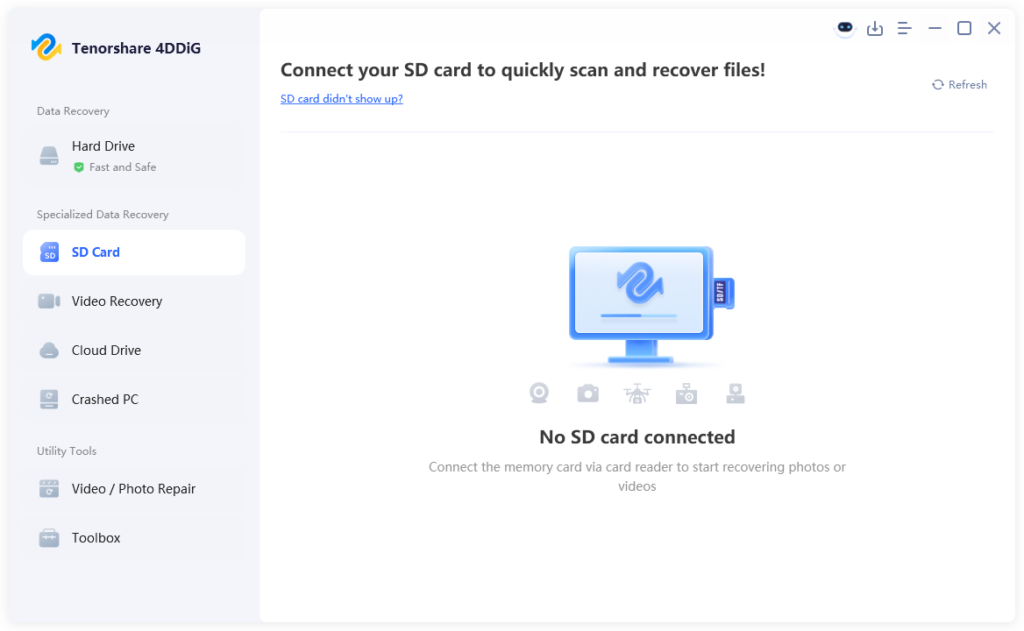
Step 1: Attach the problematic SD card to your computer. Then, install and execute the recovery tool on the same PC. Pick your problematic SD card.
Step 2: Then, select “Video” to only scan for lost footage. Hit “Scan Selected File Types.” You can pause or stop the scan once it finds your desired videos.

Step 3: Examine the recovered videos in the “Video” folder beneath the “Type” option.
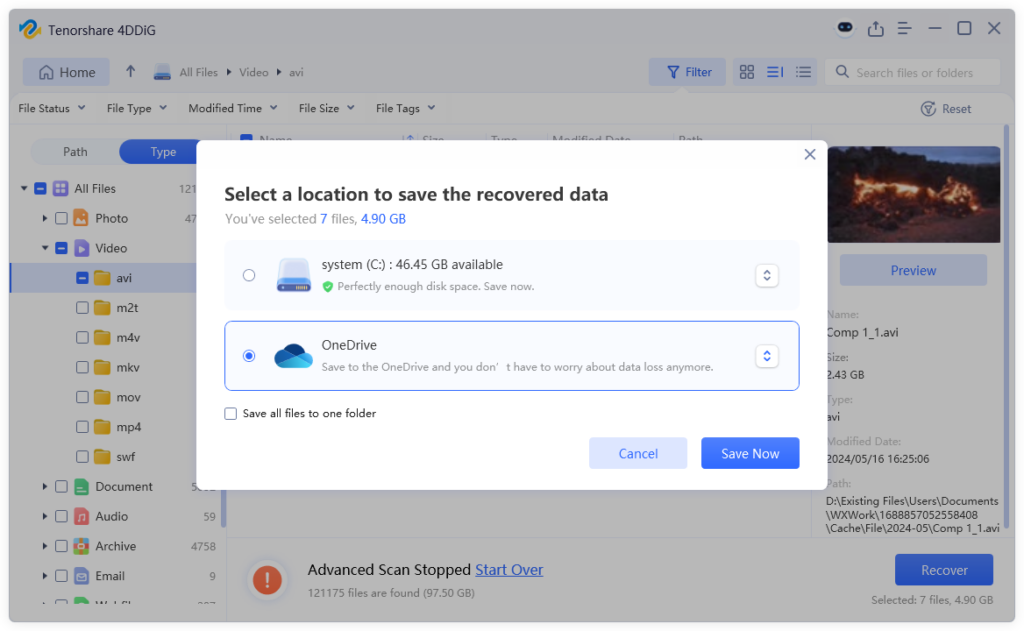
Step 4: Hit “Recover” to move the recovered videos to either your computer or cloud drive.
Part 3: How to Recover Deleted Videos From SD Card Without Software?
Here’s how to recover deleted videos from SD card without software in 5 ways. Pick a method that suits your situation:
Option A: Show Hidden Files
When you lose data on an SD card, first check whether the files are simply hidden. Viruses can hide files by changing their properties, and devices like cameras or phones may mark files incorrectly after a sudden shutdown. Users sometimes also hide files by accident through settings or command-line changes. So, here’s how to recover deleted SD card videos by revealing the hidden files:
Step 1: Attach the problematic SD card to your computer. Then, open “File Explorer.”
Step 2: Select “View” from the above menu. Next, checkmark the “Hidden Items.”
Step 3: If the files still don’t appear, execute “Control Panel.” Switch the view to “Large icons.” Then, choose “File Explorer Options.”
Step 4: In the “View tab,” turn on “Show hidden files, folders, and drives.” Hit “OK.”
Option B: Use CMD
If you can view the SD card videos but can’t open them, they might be set to read-only. But they’re not lost, as you might believe. In such a scenario, you can employ the Command Prompt (CMD) tool to remove the read-only attributes and recover access to your memory card footage. Here’s how to recover deleted videos from SD card for free with CMD:
Step 1: Attach the problematic SD card to your computer. Type “cmd” in the Windows search field. Then, execute “Command Prompt.”
Step 2: Type the following commands one by one. Hit “Enter” after each command:
- chkdsk [place SD card letter here]: /f /r
- ATTRIB -H -R -S /S /D [place SD card letter here]:*.*

Step 3: Now access your SD card files again. They will be restored in a new folder. This is how to recover deleted videos from SD card without software.
Option C: Look for Backups
In case you have a local backup of SD card videos on the D drive, NAS storage, or an external disk, you can retrieve them from there. So, here’s how to recover deleted videos from SD card on Mac and Windows from a local and cloud backup:
From Local Backup:
Step 1: Open the storage drive or device where your backup is stored (D drive, external disk, NAS, etc.).
Step 2: Look for the files you want or a full SD card backup. Then, copy the needed files to a safe location. This is how to recover deleted videos from SD card without software.
From Cloud Backup:
Step 1: Sign in to your cloud service (OneDrive, Google Drive, iCloud, etc.). Then, find the synced or uploaded SD card files.
Step 2: Download them and save them somewhere secure. This is how to recover deleted videos from SD card.
Option D: Check SD Card’s Trash Folder
On your Mac, there will be a hidden Trash folder for the memory card. You can reveal it to recover videos from SD card. Here’s how to recover deleted videos from SD card on Mac from the memory card’s Trash folder:
Step 1: Open “Finder” on your Mac. Then, head to the SD card’s main folder.
Step 2: Press the “CMD + Shift + >” keys. This will reveal the hidden files, including the “.Trashes” folder.
Step 3: Open “.Trashes.” Then, open its “Trash” folder. Find the erased footage.
Step 4: Right-click them. Next, choose “Put Back.” This is how to recover deleted videos from SD card for free.
Option E: Contact a Data Recovery Service
Still wondering how to recover deleted SD card videos? If no solution is getting your erased or lost videos back from the memory card, then contact a credible data recovery service. Get a quote, then ship your SD card to them. They’ll have the necessary tools and expertise to retrieve the footage from the memory card. The cost will depend on the complexity of recovery and the size of your videos and SD card.
READ MORE: Here’s why the Arizona economy is poised to accelerate
LOCAL NEWS: Want more stories like this? Get our free newsletter here
Final Words
You can learn how to recover deleted/lost videos from SD card in several ways. Check for hidden files using CMD, restore from backups, or recover videos from the SD card’s Trash on a Mac. If these quick fixes don’t help, using a recovery tool gives you the best chance before the data gets overwritten. 4DDiG Data Recovery is a great choice. It’s simple to use, supports many file types and devices, offers a high recovery rate, and even offers free recovery for Windows users.