
A practical guide to checking download pages, installers, compatibility, permissions and first-time desktop settings.
Introduction
Messaging apps have become essential tools for personal communication, remote work, community management and file sharing. For many users in Hong Kong and Taiwan, the first step toward installing a desktop messaging application is usually a search for a Windows download page.
That simple search can produce a confusing mix of advertisements, software directories, translated pages, unofficial mirrors and websites designed to resemble legitimate product pages. Some results may contain outdated installers, misleading download buttons or files that request unnecessary system permissions.
A page appearing near the top of a search result does not automatically make it trustworthy. Before installing any communication application, users should verify the domain, confirm the platform version, inspect the installer and review the permissions requested during setup.
This process is particularly important for users switching between Traditional Chinese and English interfaces. Incomplete translations or unclear platform labels can make it difficult to determine whether a file is intended for Windows, Android, iOS or another operating system.
The following checklist explains how to evaluate a messaging app download before opening the installer.
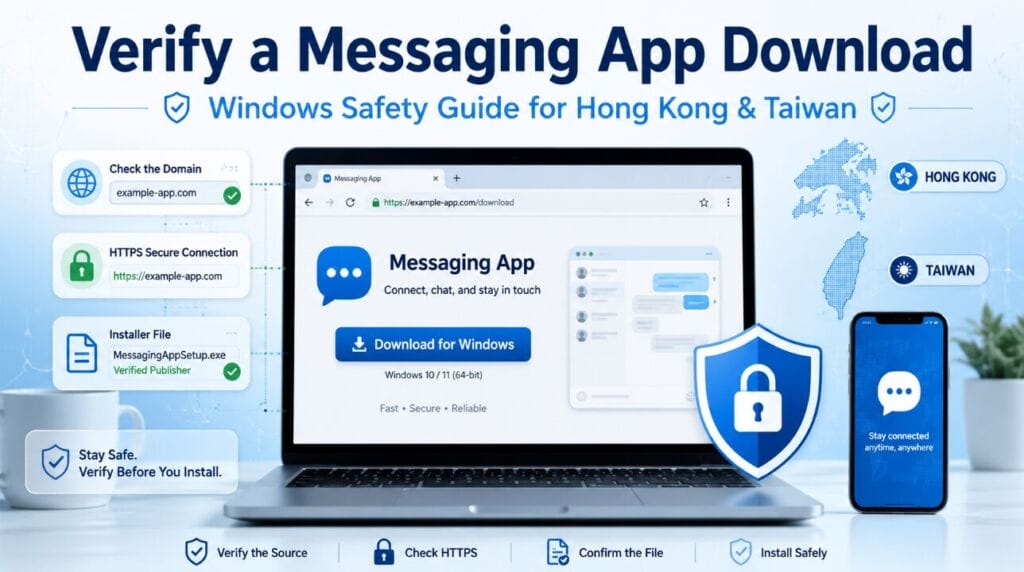
Why Regional Download Searches Can Be Misleading
Search results can vary according to location, browser settings, language preferences and previous browsing activity. A user searching from Hong Kong may see a different combination of results from someone performing the same search in Taiwan.
These results may include:
- Sponsored advertisements placed above organic listings
- Third-party software download directories
- Regional mirrors that host copies of installation files
- Tutorial pages containing multiple promotional buttons
- Translated pages with incomplete version information
- Lookalike domains designed to resemble a known application
A page may use familiar logos and screenshots without having any connection to the developer. Multiple brightly colored buttons can also make the real download difficult to identify.
Traditional Chinese users should pay particular attention to translated labels. Terms such as “desktop version,” “Windows client,” “mobile edition” and “web access” may be translated inconsistently. A page that appears to offer a Windows application may actually redirect visitors to an Android package, a browser extension or an unrelated installer.
Evaluate the page instead of trusting its search position. A high ranking does not guarantee that a file is current, compatible or safe.
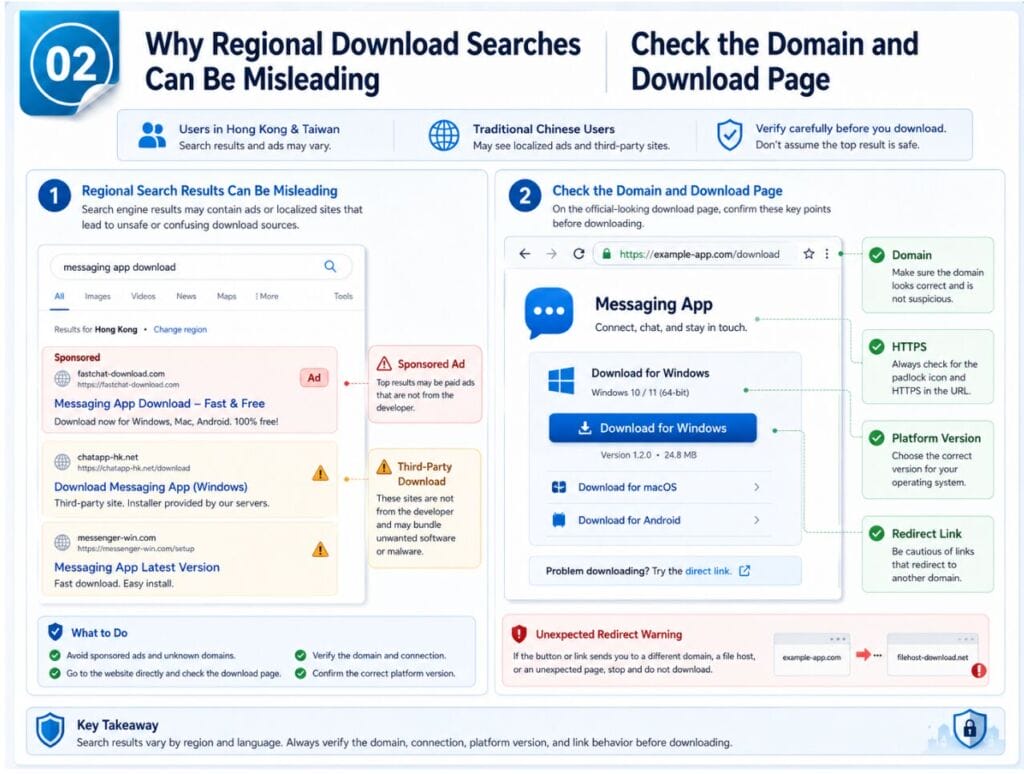
Check the Domain and Download Page
The domain name is one of the first details to review. Look for misspellings, extra words, unusual characters or subdomains that could create the impression of an established product website.
For example, a misleading domain might replace one letter, add terms such as “free,” “secure” or “latest,” or place the application name inside a long subdomain belonging to another service.
DEEPER DIVE: Arizona has 6 of the 30 happiest cities in America
INDUSTRY INSIGHTS: Want more news like this? Get our free newsletter here
Review the spelling
Read the domain carefully from beginning to end. Attackers sometimes use letters that look similar at a glance, especially on smaller screens.
Confirm the HTTPS connection
HTTPS protects information transmitted between the browser and the website. It does not prove that the website is trustworthy, but the absence of a secure connection should be treated as a warning. Clicking the browser’s connection icon may reveal certificate information and whether the connection is encrypted.
Inspect the page structure
A reliable download page should clearly explain:
- Which operating systems are supported
- When the current version was released
- Whether the download is for desktop or mobile devices
- What system requirements apply
- How large the installation file is
- Where users can find help or support information
Pages that offer little information while aggressively pushing visitors toward a download should receive additional scrutiny.
Examine every download button
Some third-party pages display several buttons with labels such as “Download Now,” “Start,” “Install” or “Recommended Download.” One button may lead to the requested software while the others promote unrelated products.
Before clicking, place the cursor over the button and inspect the destination shown by the browser. If it points to an unfamiliar external domain, file-hosting service or advertising network, stop and review the page again.
Users in Hong Kong and Taiwan should review the website, platform version and redirect destination before following a Potato download guide.
This review helps users understand the file without assuming that every page using the application name is operated by its developer.
Confirm Windows and Mobile Compatibility
Messaging applications often have separate Windows, macOS, Android, iOS and browser versions. Installing the wrong package can cause errors or security risks, so confirm the supported platform first.
Check the Windows version
Some applications require a recent release of Windows, while older installers may no longer receive security updates. Users should verify whether the application supports their current system and whether any additional components are required.
Understand 32-bit and 64-bit editions
Most modern Windows computers use 64-bit architecture, but some download pages still provide separate 32-bit and 64-bit installers. Windows users can review their system type through the device settings. Installing the correct edition may improve compatibility and reduce installation errors.
Separate desktop and mobile packages
Windows installation files commonly use formats such as .exe or .msi. Android applications often use .apk, while iOS installations normally take place through the App Store. A website claiming to provide a Windows version should not automatically begin downloading an Android package.
Compare desktop and mobile features
Desktop and mobile versions may differ in registration, contact synchronization, calls, storage and privacy controls. Review these differences before assuming that a missing feature indicates a faulty download.
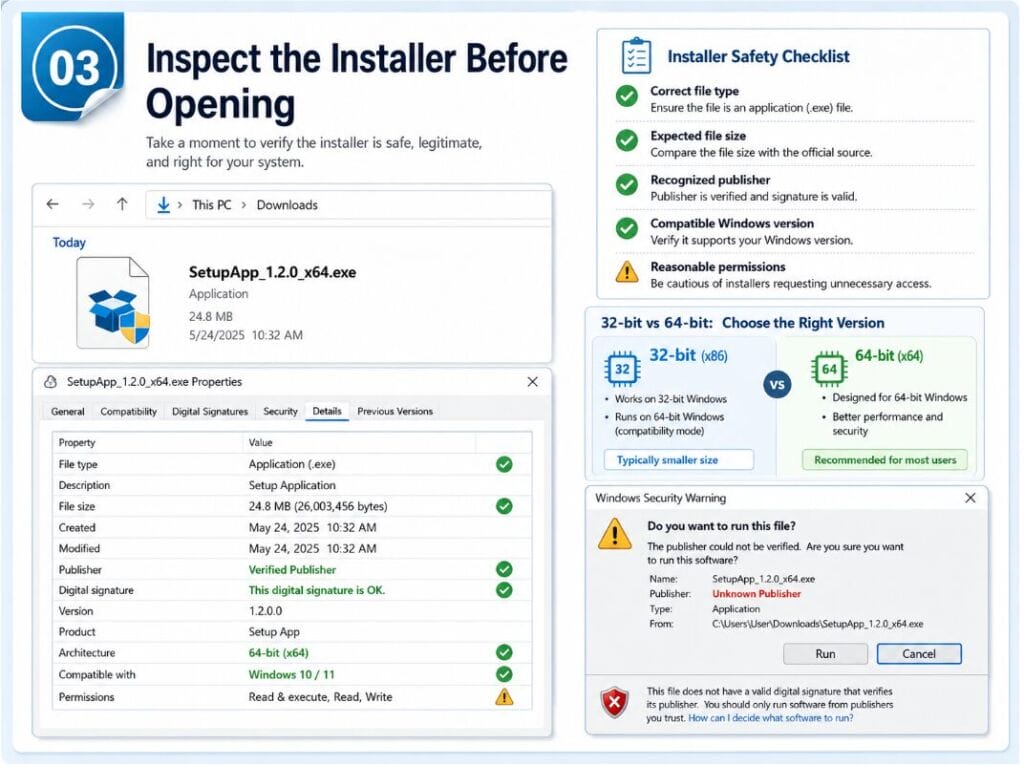
Review the Installer Before Opening It
After downloading the file, do not open it immediately. Take a moment to inspect the filename, extension, size and available publisher information.
Check the filename and file type
The filename should match the application and platform. Random strings, promotional wording, unexpected extensions or archives containing unrelated programs should be treated cautiously.
Compare the file size
An unusually small file may be a download manager that introduces advertisements or bundled software. An unexpectedly large file also deserves checking, especially when the page does not state its size.
Read Windows security warnings
Do not dismiss Windows warnings about an unknown publisher. Review the displayed publisher, filename and source; cancel the installation when those details do not match expectations.
Review requested permissions
Some installers request administrator access because they need to write files to protected system locations. However, users should question requests that seem excessive for a messaging application. During installation, watch for options that attempt to:
- Change the default browser
- Install unrelated software
- Add browser extensions
- Modify the search provider
- Launch automatically without explanation
- Collect unnecessary diagnostic information
Use custom installation options when available to review bundled components.
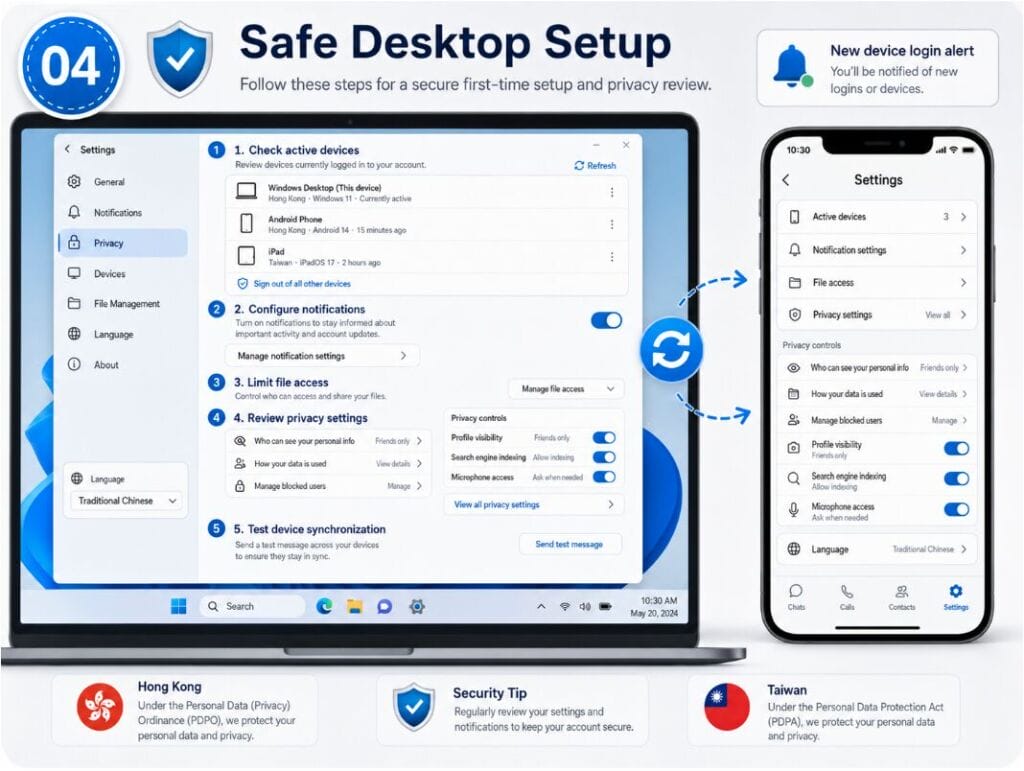
Complete a Safe First-Time Desktop Setup
Installation is only part of the process. The application must also be configured carefully when it is opened for the first time.
A clear Potato desktop setup process can help Traditional Chinese users keep account, privacy and notification settings consistent across devices.
Confirm the sign-in method
Confirm whether sign-in uses a phone number, email, QR code or mobile session. Enter authentication codes only in the expected interface and never share them.
Review active devices
After signing in, review current sessions and remove unrecognized or unused devices, especially when switching between personal, office and mobile devices.
Configure notifications and file access
Choose which messages and system alerts require desktop notifications. Disable message previews on shared computers, and grant camera, microphone and file permissions only when needed.
Review privacy options
Review who can see account details, add the user to groups, synchronize contacts or view activity indicators. Users in Hong Kong and Taiwan should also confirm their preferred Traditional Chinese or English interface.
Test device synchronization
Send a test message and confirm that conversations, files and settings synchronize across devices. If they do not, verify the account, connection and application version before reinstalling.
Maintain the App Safely After Installation
A safe installation can become risky later if updates are downloaded from unknown sources or account settings are ignored.
Use a consistent update source
Whenever possible, update the application through its built-in update function or another previously verified source. Avoid downloading every new version from a different third-party page.
Monitor permission changes
After major updates, review camera, microphone, notification and file permissions. New access requests should have a clear connection to an added feature.
Prepare account recovery options
Keep recovery email, passwords, backup codes or verified phone details current. Store recovery information securely and never send it through an unprotected chat.
Check new device logins
Review active sessions regularly. If an unfamiliar device appears, terminate the session, update the password and enable stronger account protection. Users should also investigate unexpected verification messages, repeated sign-in alerts or notifications from unfamiliar locations.
Remove unused installations
Old or shared computers may retain active sessions. Sign out before selling, repairing or transferring a device, and review the connected-device list separately.
Final Checklist
Before installing a messaging application on Windows, confirm that:
- The domain is spelled correctly
- The connection uses HTTPS
- The page identifies the supported operating system
- The download button does not redirect unexpectedly
- The installer has an appropriate filename and extension
- Windows security information has been reviewed
- Bundled software and unnecessary permissions are declined
- Account and privacy settings are checked after sign-in
- Desktop and mobile synchronization works as expected
- Future updates come from a consistent source
Users in Hong Kong and Taiwan do not need advanced technical knowledge to complete these checks. Careful review prevents many common download problems.
Do not treat a search result, familiar logo or prominent button as proof that a file is suitable. Verify the page, platform and installer before allowing changes to a Windows computer.
| Editorial note: This article provides general download-verification guidance and does not identify potatopa.com as the official website of any software developer. |